Asset Studio — AI Asset Generation for Images, Video, Audio and 3D by Hand
Asset Studio is a new tab in the AI Game Developer app where you generate images, video, audio and 3D models yourself, compare models and iterate.
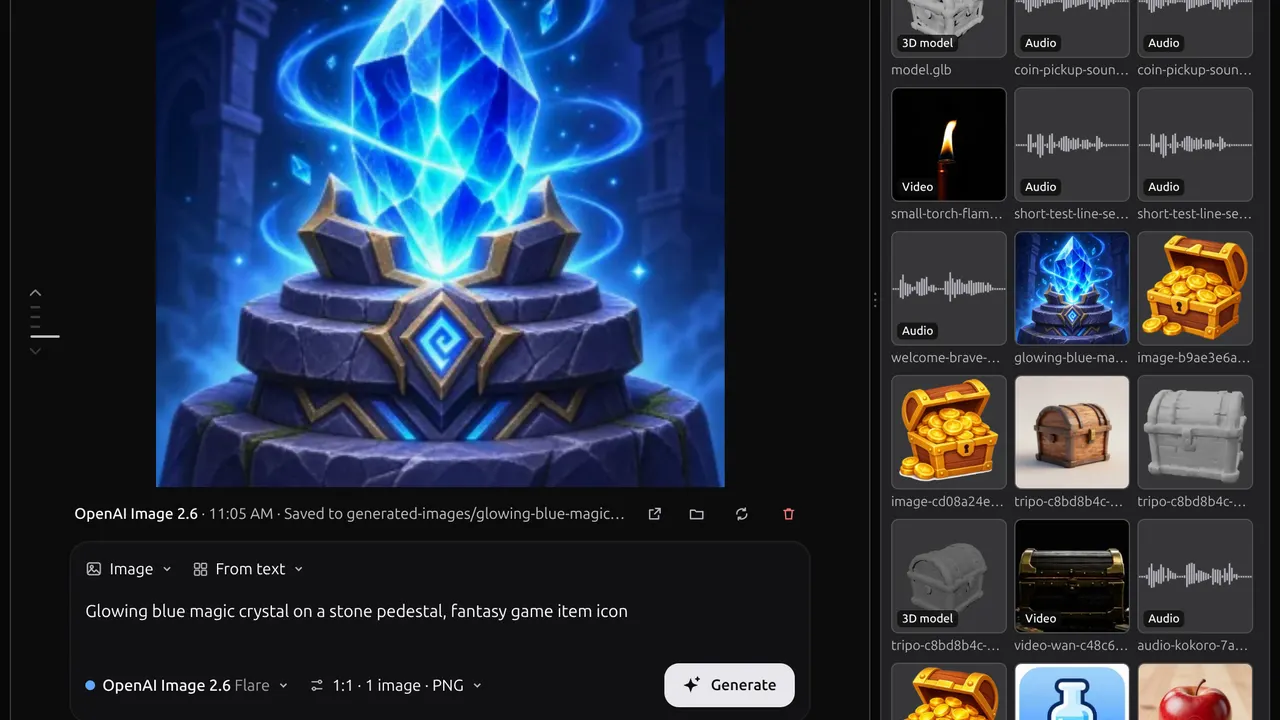
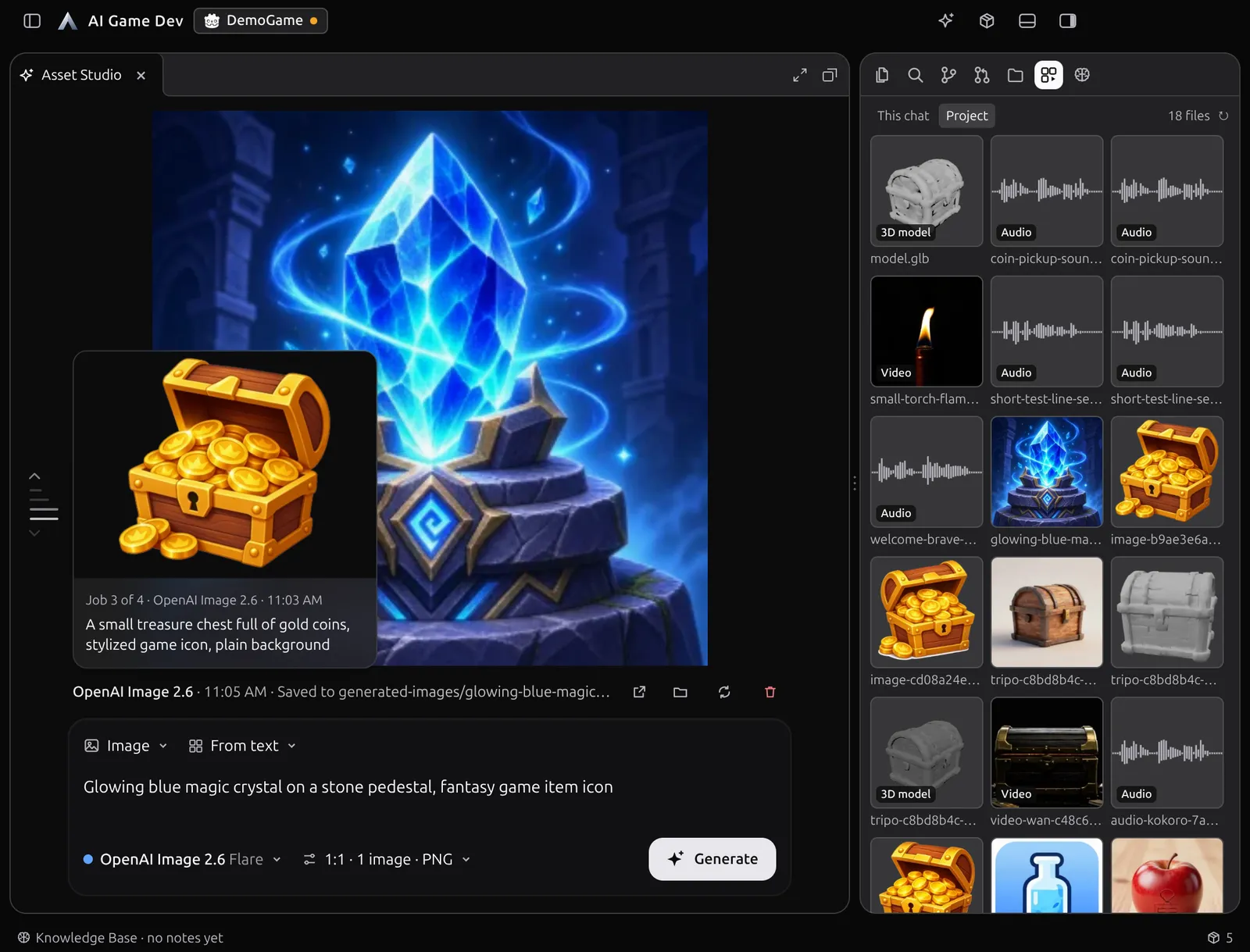
Asset Studio is a new tab in the AI Game Developer desktop app for AI asset generation by hand. Pick a model, write a prompt, drop in a reference picture, press Generate, and the image, video clip, voice line, sound effect, piece of music or 3D model lands in your project. No chat, no agent in between: you drive every setting yourself.
The agents in AI Game Developer have been able to use all of these generation tools from chat for a while. Ask for a texture, a cutscene or a treasure chest, and the agent picks a model and runs the job. That is great when you know what you want and are happy to describe it. Asset Studio is made for people. It lets a human experiment directly: compare two models on the same prompt, try a different seed or aspect ratio, swap a reference image, and iterate by hand until the result is right, without asking an agent to do each step.
Open Asset Studio
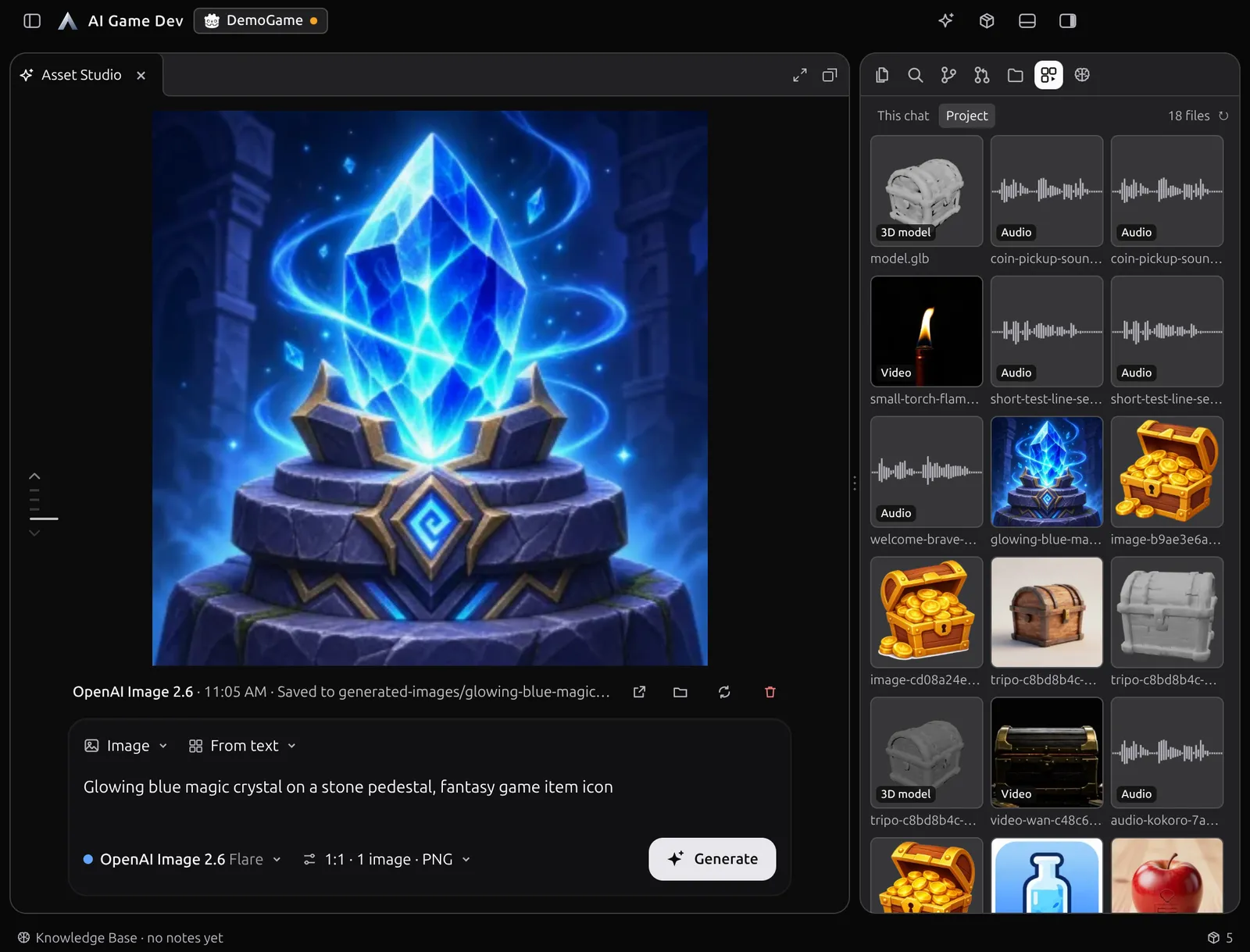
Click the sparkle button in the title bar. Asset Studio opens as a tab in the workspace, like a chat session or a file preview, so it follows the same layout rules described in our post about the game dev workspace at ai-game.dev/blog/ai-game-dev-workspace-panes-previews-git. You can keep it next to a chat, maximize it to fill the window, or float it above the layout while you work on something else.
The tab has three parts:
- The stage in the middle shows the current result: an image, a video, a sound with its waveform, or a 3D model.
- The composer at the bottom holds the kind of asset, the prompt, the inputs, the model and its settings, and the Generate button.
- The history rail on the left keeps every job you have run.
An AI Game Asset Generator with Every Model in One Place
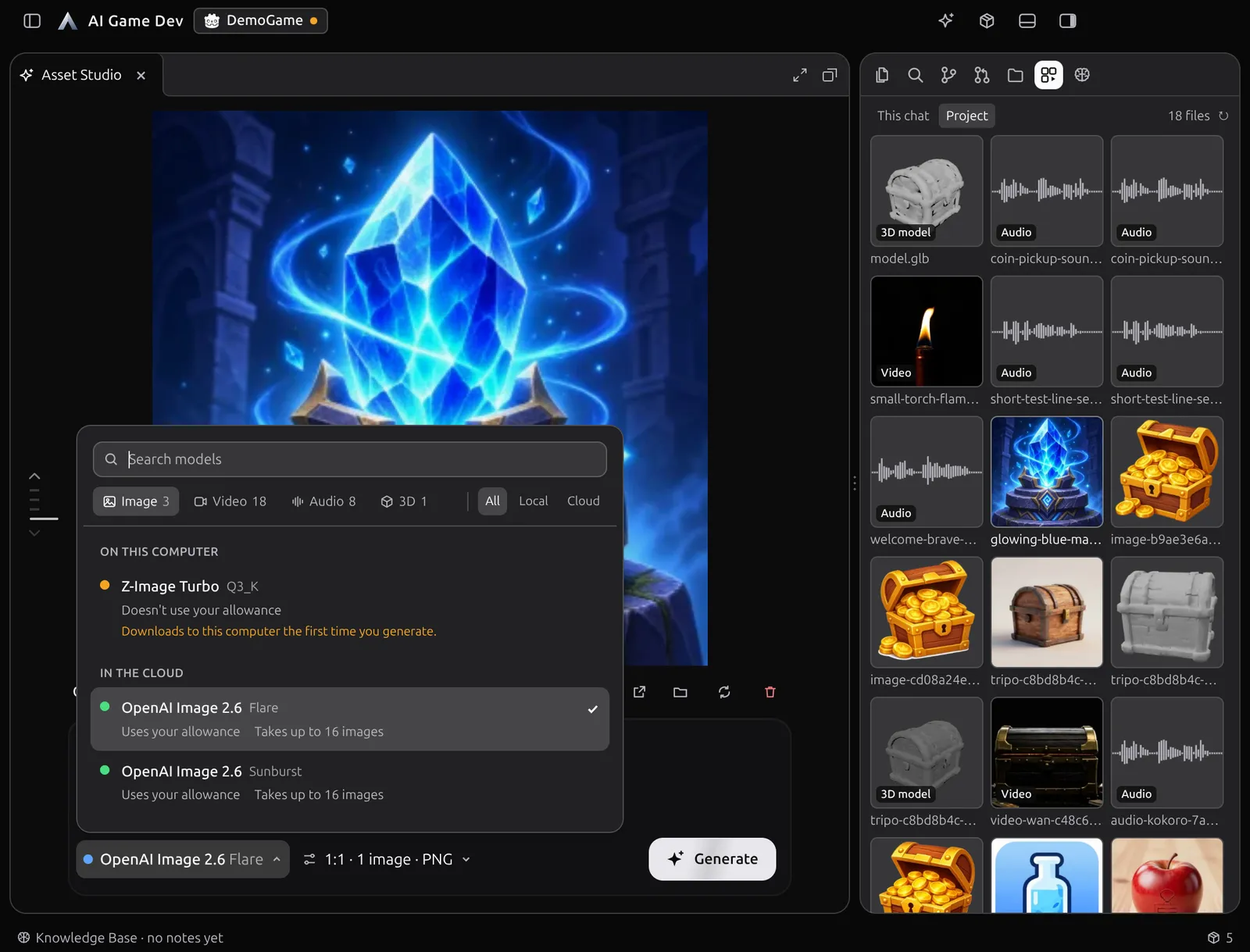
The first choice is the kind of asset: images, video, audio or 3D. Audio covers speech, music and sound effects. The model picker then lists every model for that kind, split into two groups.
- Models on this computer run on your own GPU and do not use your allowance. A local model downloads the first time you press Generate with it, not before.
- Models in the cloud run on AI Game Dev servers on your plan's allowance, so you need no GPU and no account with the model provider. Usage is shown as a percentage of your allowance.
The picker has tabs for Image, Video, Audio and 3D, a filter for All, Local or Cloud, and a search field. Switching models takes one click, which is the whole point: run the same prompt on two image models, or on two quality levels of the same 3D model, and keep the one that fits your game.
Prompt, Inputs and Settings
Write the prompt in the composer. Then add the inputs the model accepts: a picture to edit, start and end frames for a video, reference images, several views of an object for a 3D model, or an existing model file to texture or clean up. Drag files from the Explorer or straight from your computer onto the composer.
The composer shows exactly the slots the chosen model and mode take. If a video model accepts a start frame and an end frame, you see two slots; if an image model takes only a prompt, you see none. You never have to guess which inputs a model will use and which it will ignore.
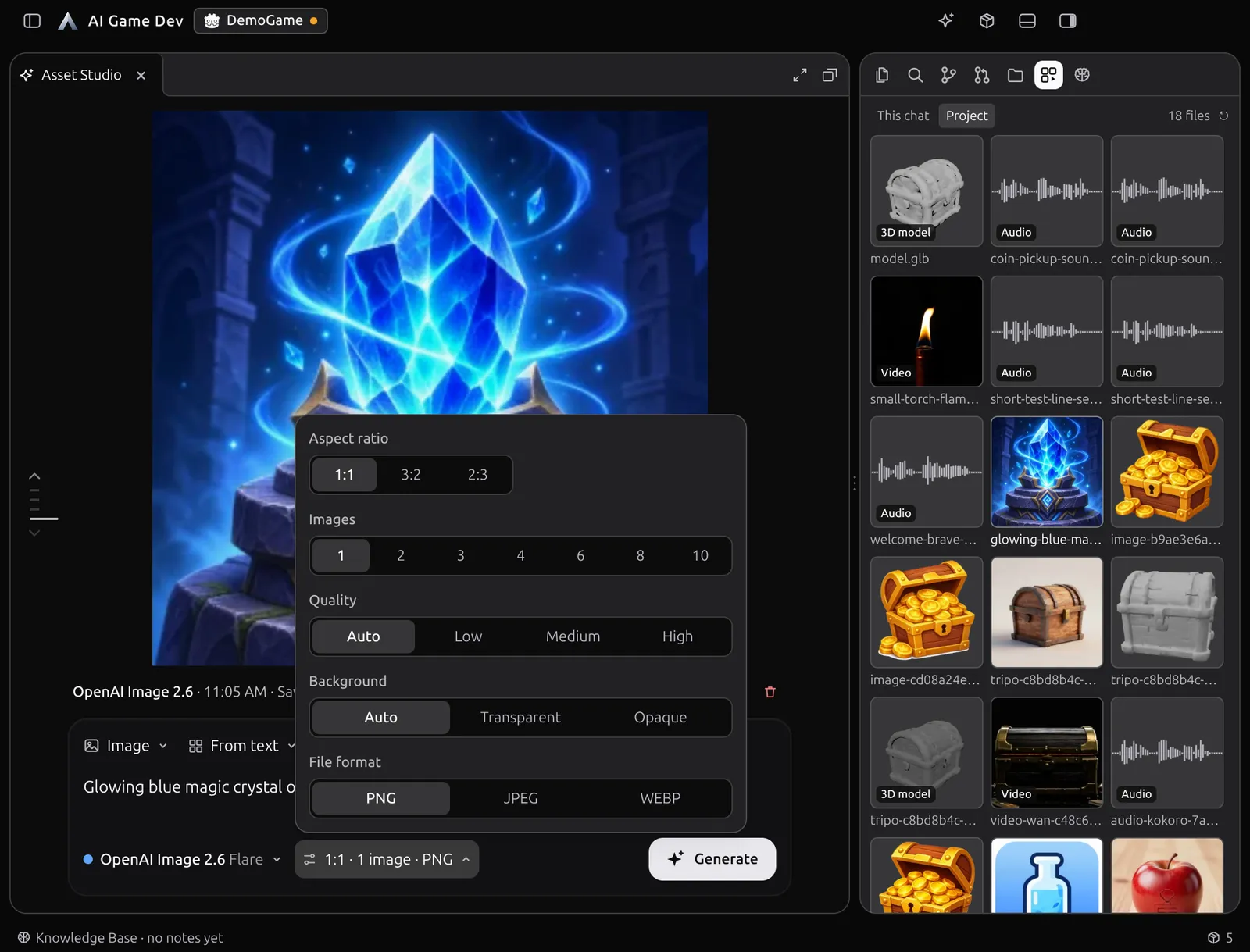
Settings come from each model's own catalogue, so what you see is what is generated:
- Lengths, resolutions and aspect ratios for video and images.
- Sound on or off for video models that can generate it, and voices for speech.
- Quality variants, such as Tripo's quality levels for 3D, or OpenAI's quality, background and file format for images.
- The number of images per job, up to ten for the OpenAI image model.
- A seed that is random by default or fixed when you want to repeat a result and change one thing.
Generate as Many as You Like
Press Generate and keep going. Cloud jobs run in parallel, so you can start four variants of an icon and a voice line at the same time; local jobs queue up on your GPU and run one after another. Every job shows its progress and the phase it is in.
A cloud job keeps running on the server even if your connection drops or you restart the app: Asset Studio reconnects to it and picks up the result. When something does go wrong, the error is written in plain words with a next step, such as choosing another model or changing a setting.
Results Land in Your Project
Every result is saved into the project with a short, readable name based on the prompt, such as a folder of generated images with glowing-blue-magic-crystal in the name, instead of a random ID. From the stage you can open the file's location, regenerate, or delete it.
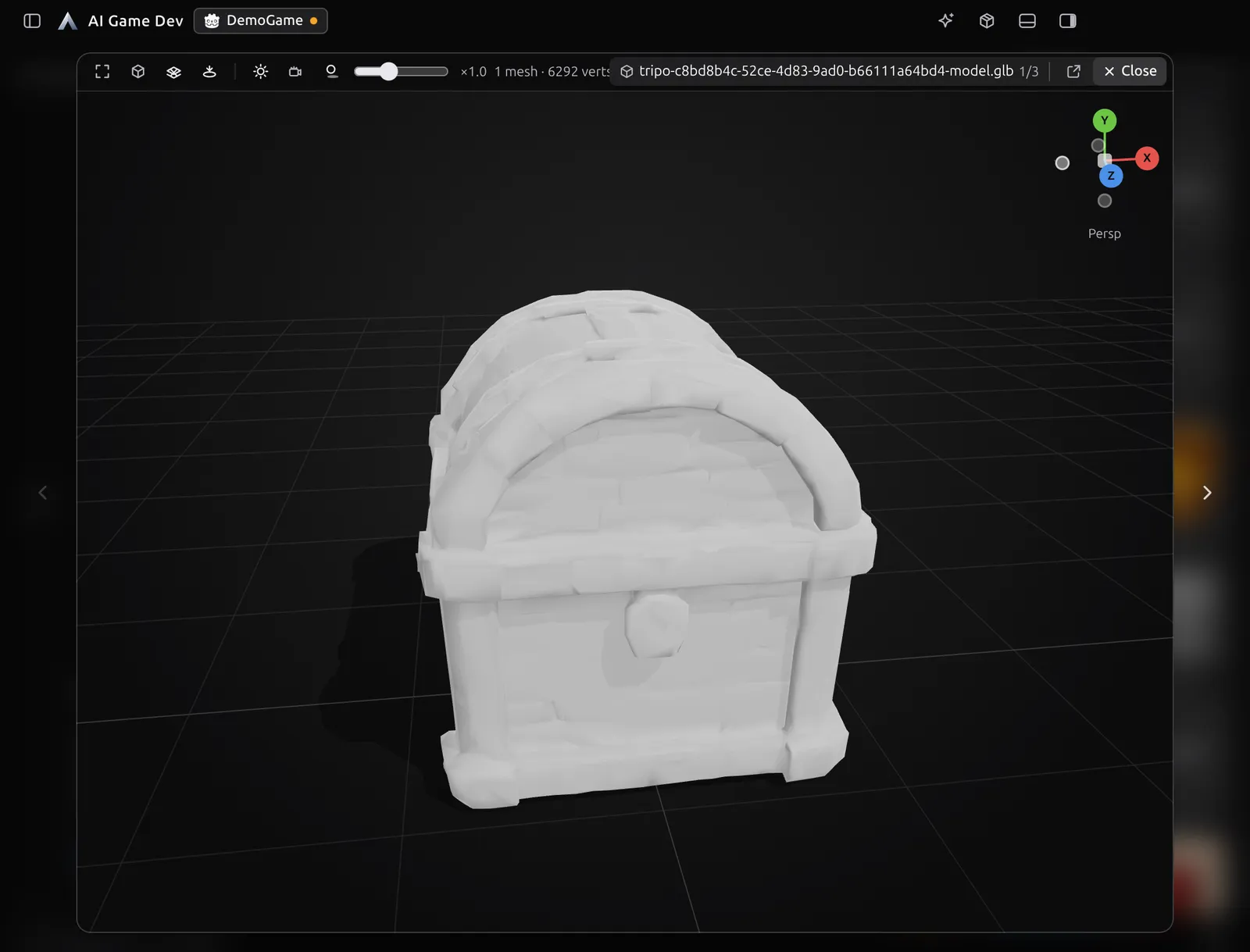
Click a result to open it full size over the window. Images open with zoom, 3D models open in a viewer you can orbit, and video plays. Sound plays right on the stage with a waveform and the file's format details. Video and audio playback can loop everywhere in the app, which helps when you judge a looping ambience or a torch animation.
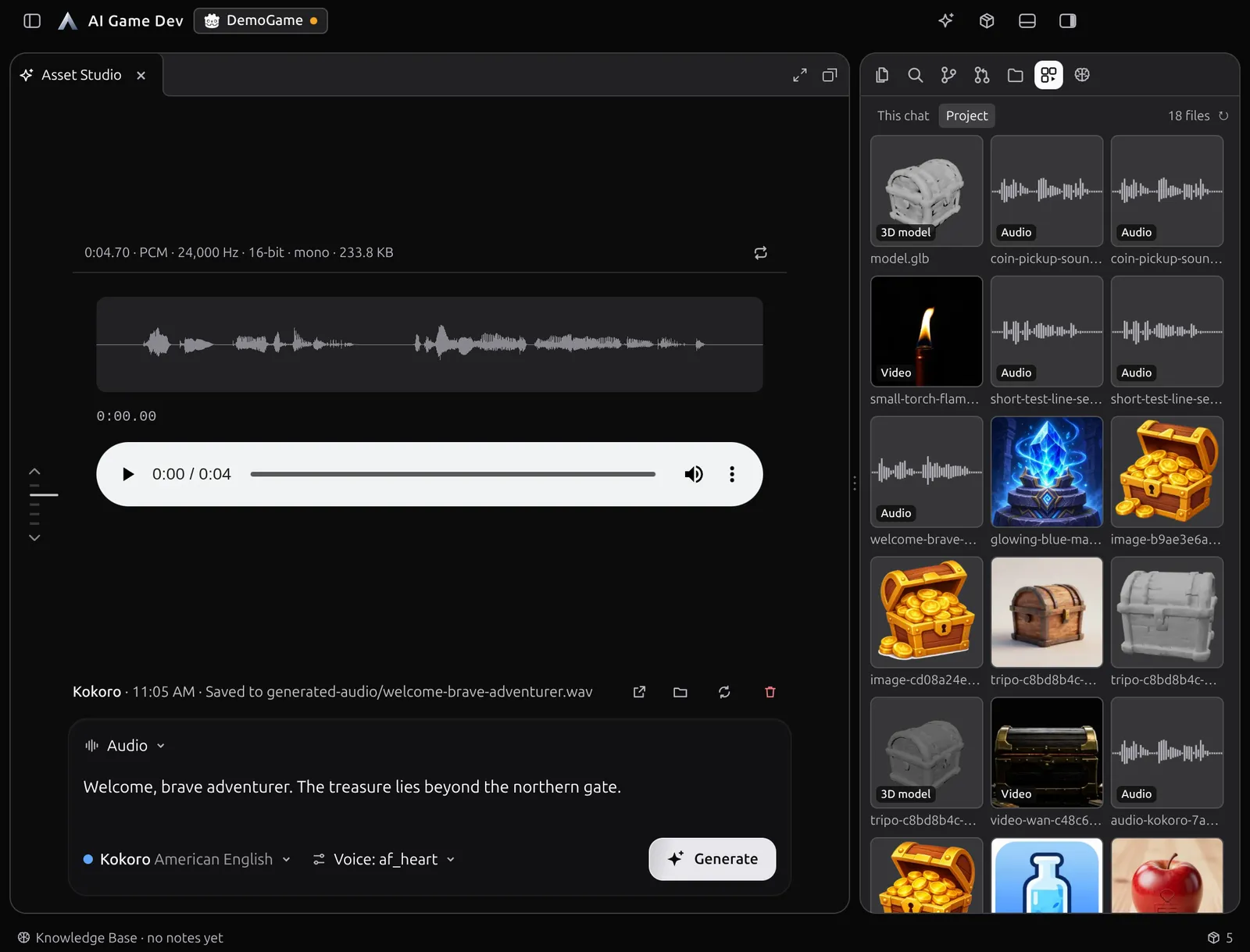
The Media button opens all generated media of the project in the side panel: images, video, audio and 3D models in one grid, so you can find any result again in one place.
History: Go Back, Tweak, Try Again
Every job is kept in the history rail. Hover a past job to see its result, prompt and model; click it to bring back everything it used: the model, the prompt, the settings, the inputs and the seed. Change one thing, a model, an aspect ratio, a line in the prompt, and generate again to compare.
Input files are kept with the project, so an old job stays reproducible. If you are about to repeat exactly the same paid job with the same seed, Asset Studio asks before running it again.
Asset Studio and the Agent Work Together
Asset Studio does not replace generation from chat; it gives you a second way in. A practical split looks like this:
- Let the agent handle the bulk: a set of item icons in the project's style, or a 3D model placed straight into the scene.
- Open Asset Studio for the assets that need your eye: the hero image of a store page, the main character's voice, the chest the player opens a hundred times.
- Compare models and seeds by hand, keep the best result, and tell the agent where it is when it should be used in the game.
Both paths save into the same project, and the Media panel shows everything together.
Try It
Asset Studio is in the AI Game Developer app. Download it at ai-game.dev/download, open your project, click the sparkle button in the title bar and generate your first asset. Local models run on your GPU without using your allowance; for cloud models, see the plans at ai-game.dev/pricing.