A Game Dev Workspace for AI — Chats, 3D Models, Textures and Git in One Window
Run AI sessions side by side, preview 3D models, textures and audio next to the chat, and review every change in Git, in one AI Game Developer window.
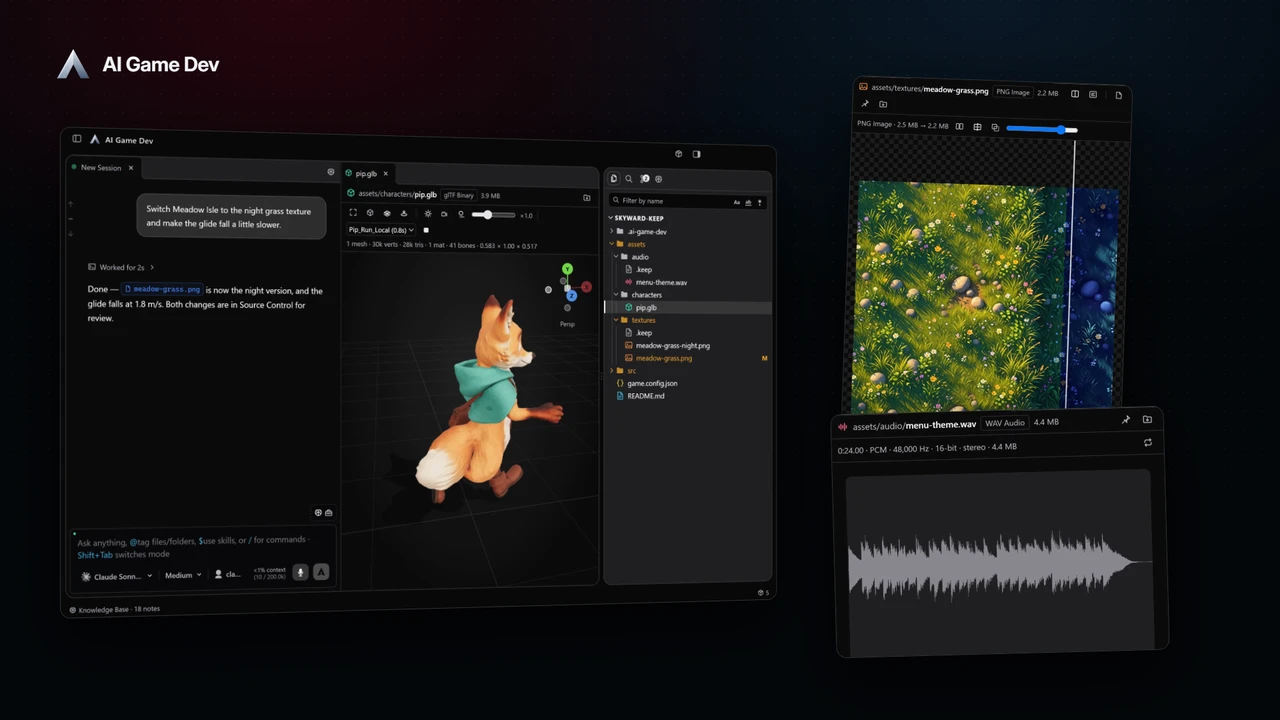
Working with an AI agent on a game means constant switching: the chat, the engine, the file browser, an image viewer, a 3D viewer, an audio player and Git. The AI Game Developer desktop app pulls these into one game dev workspace. Each project gets its own window, sessions sit side by side in panes, files open in previews right next to the chat that changed them, and Source Control shows exactly what changed.
This post walks through the workspace with one simple loop that you will repeat all day: send a request, look at the result, check the changes. The video shows that loop on our demo game, Skyward Keep.
One Window per Project
Each project lives in its own window, as in VS Code. When you relaunch the app, every project window that was open comes back with its own size, position, side panels and pane layout. An empty window is a launcher with recent projects, Open folder and Create new project; Ctrl-click on Windows and Linux, or Cmd-click on macOS, opens a project in a new window instead of replacing the current one.
You can chat in any folder, not only in a Unity, Godot or Unreal project. That is useful for a Blender-only asset project, a design docs folder or a tools repository.
Sessions in Panes, Side by Side
The centre of the window is a layout of panes. Keep several sessions open as tabs or as side-by-side splits, vertical or horizontal; maximise one, or float it above the layout; and drag a session from the list straight into the layout. Sessions in the background keep streaming, and the layout is saved for each project.
Each pane keeps its own model, reasoning effort and agent. That makes a practical setup possible:
- A large model in one pane plans and builds a feature.
- A faster model in a second pane handles quick questions and small fixes.
- A third pane generates assets with the image or 3D tools.
Groups Keep the Session List Tidy
The sidebar organises sessions into groups you can create, rename, colour and reorder. The grouping is committed with the project, so a teammate who clones the repository sees the same layout. Each row shows what the AI is doing and how long it has been working, and a search field filters sessions by name or group.
For long conversations, a prompt navigator lets you jump back to earlier messages with hover previews.
Preview the Result Next to the Chat
When the agent creates or changes a file, you want to see it, not just read its name. Files open in preview panes beside your sessions, and file paths in chat messages are clickable: a click opens the file in a preview and jumps to the line when a line number is given.
The previews cover the file types a game project is made of:
- Code with syntax highlighting, and Markdown.
- Images and textures, including TGA, TIFF, PSD, HDR, EXR, DDS and KTX, plus SVG.
- 3D models with their textures, switchable lighting and shadows, and an orientation gizmo.
- Audio with a waveform and the file's real sample rate, codec, bit depth and channels, with a loop toggle.
- Video, fonts, CSV and a hex view for everything else.
A single click opens a temporary preview, a double click keeps it open, and previews reload by themselves when the file changes on disk. That last part matters with an agent: ask for a darker texture, and the open preview updates when the file is written.
Check the Changes in Source Control
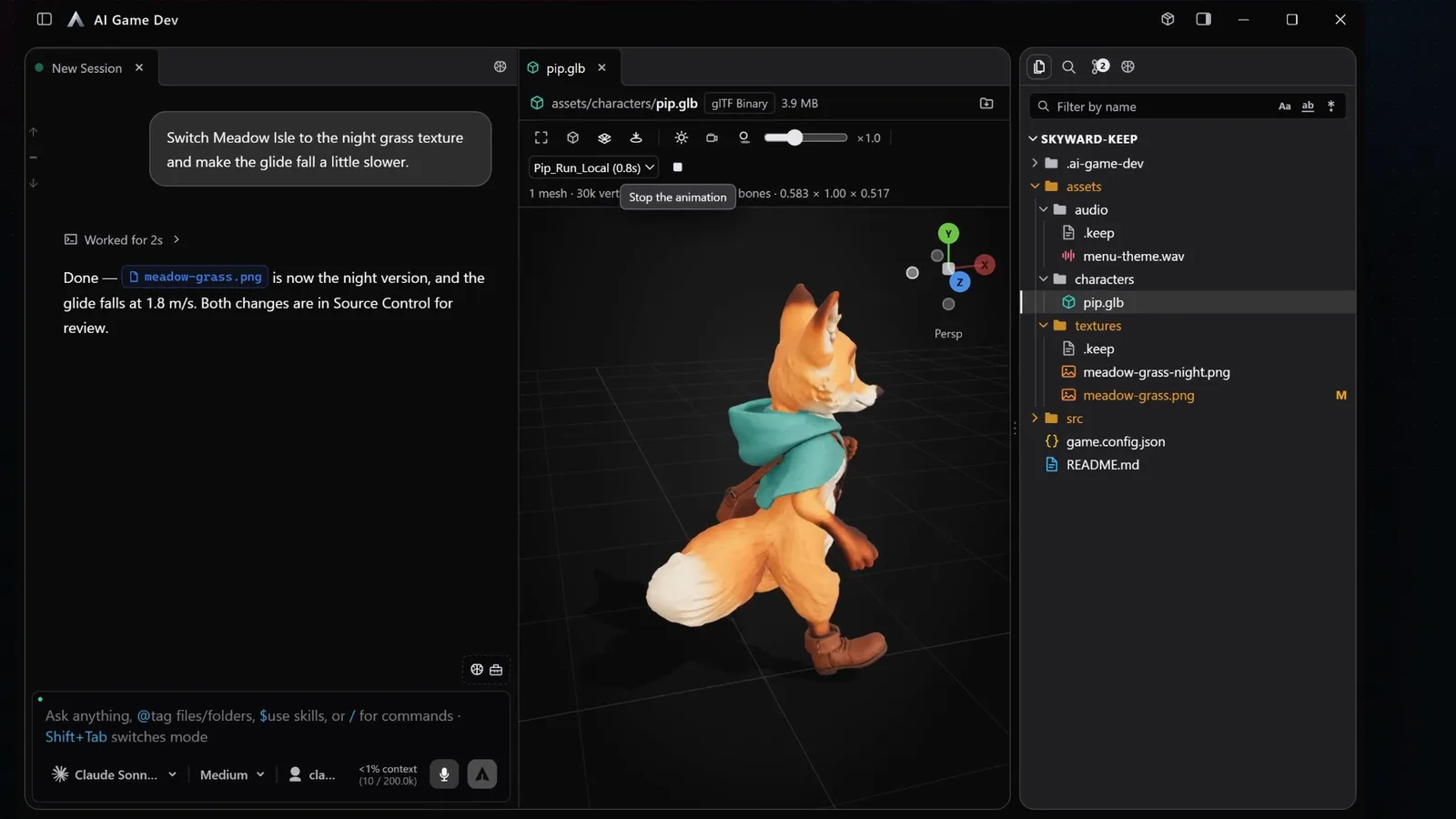
The right panel has three tabs: Explorer, Search and Source Control.
- Explorer shows the project's files as a live tree with Git decoration, inline rename and create, and drag-and-drop into the chat composer.
- Search finds content with include and exclude globs, and can replace all matches.
- Source Control shows the branch, ahead and behind counts, a diffstat, and lets you commit and pull.
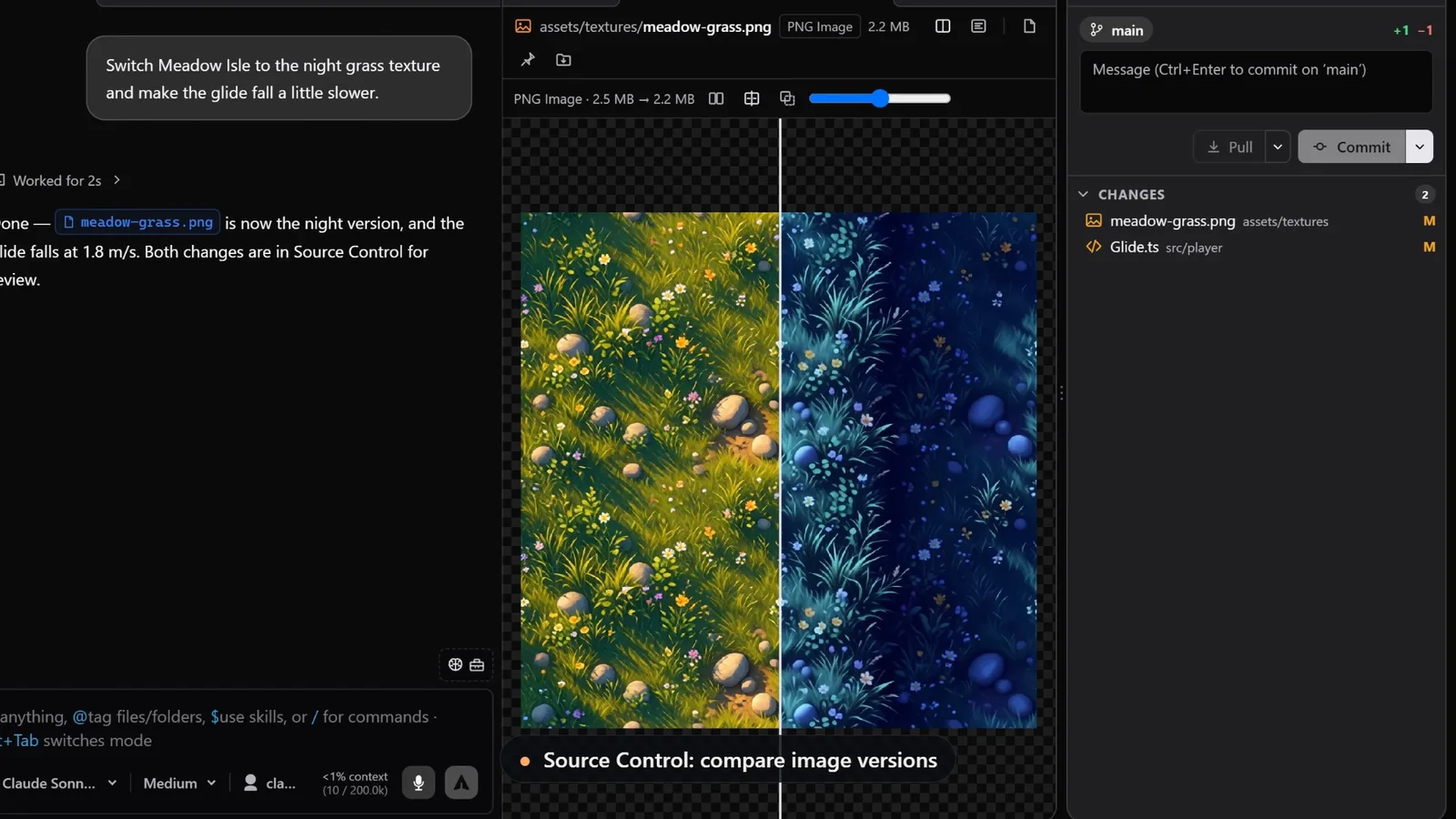
Click a changed file in Source Control and it opens as a diff. For images, the diff is a side-by-side comparison, so you can see exactly how a texture changed before you commit it.
The Loop: Request, Preview, Review
Put together, the workspace supports a short loop that keeps you in control:
- Send a request. In the demo: "Switch Meadow Isle to the night grass texture and make the glide fall a little slower." The agent replaces the island's texture with the night version and changes the glide's fall speed from 2.5 to 1.8 m/s, and tells you both changes are waiting in Source Control.
- Look at the results next to the chat: the texture in an image preview, the menu music in an audio preview, the animated character in a 3D preview docked beside the session.
- Open Source Control, compare the old and new texture, and read the code diff for the tuning change.
- Commit when you are happy, or ask for another change.
Commit often. Small commits make it easy to go back when an experiment does not work, and the history shows which session made which change.
Make It Yours
The workspace comes with six themes, from the neutral black Dark to the charcoal Carbon and light themes, and the composer hides its controls in a fixed order as the window narrows, so even a small split stays usable. Packages can add their own panels and file previews too, which we cover in a separate post about Packages, plugins and MCP.
The workspace grew over several releases: the right panel in 0.14.0, panes, previews and project windows in 0.18.0 (https://ai-game.dev/releases/0.18.0), and textured 3D previews in 0.20.0. Download the app at ai-game.dev/download, open your project, and split your first two sessions side by side.