Cloud AI Video and Audio Generation for Your Game, No GPU Needed
Generate cutscenes, trailers, voice lines, sound effects and music for your game from the AI agent, with cloud models such as Veo 3.1, Kling and ElevenLabs.
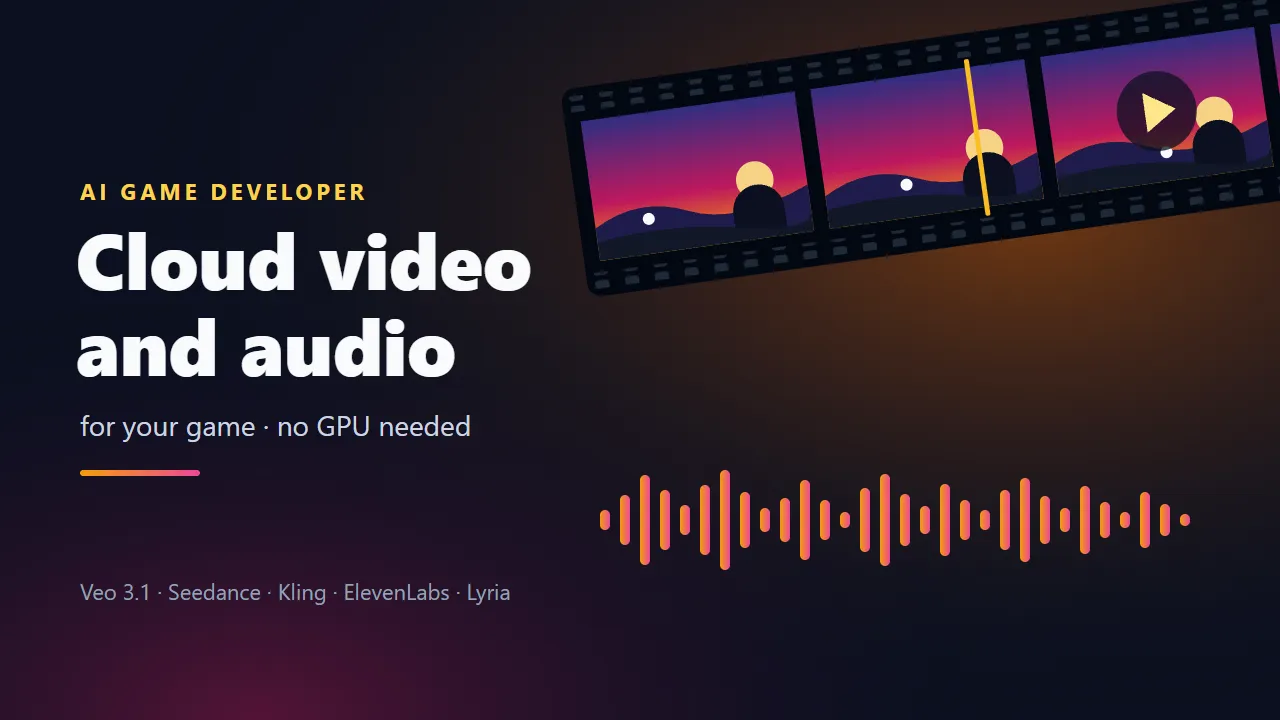
AI Game Developer can now generate video and audio for your game in the cloud. Ask the AI agent for a cutscene, a trailer shot, an animated background, a voice line, a sound effect or a piece of music, and it runs the job on a cloud model such as Google Veo 3.1, Kling or ElevenLabs. The work happens on AI Game Dev servers, so you need no local GPU and no account or key with any of the model providers.
Local models keep working as before and stay free: if your computer has a capable GPU, the guide at ai-game.dev/blog/local-ai-video-generation-on-your-gpu shows how to generate video on it. Cloud generation is for everyone else, and for the models that do not run locally at all.
What You Can Make with Cloud AI Video Generation
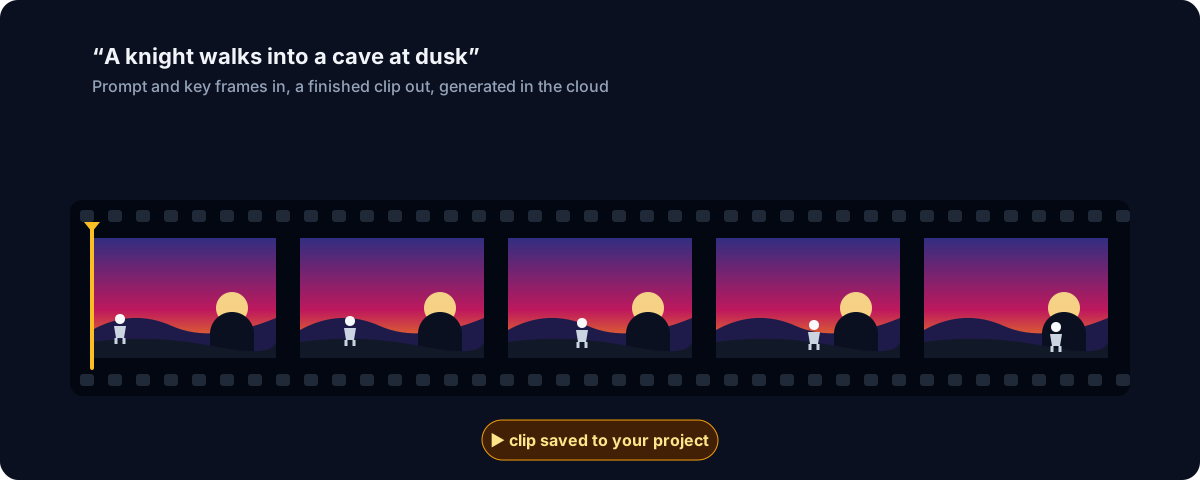
- Cutscenes and story beats, generated from a short script or from your own concept art.
- Trailer shots for a store page or a devlog.
- Animated backgrounds and title screens.
- Reference clips for sprites and visual effects: an explosion, a spell, a run cycle to draw from.
- Speech for characters, sound effects and music for menus and levels.
The Video Models
The Models tab of the app lists every model with what it can do, how it runs and whether your account can use it. The cloud video families are:
- Google Veo 3.1 in three variants, Lite, Fast and Standard, all with native audio: the clip comes with sound.
- Seedance 2.0 (and 2.0 Fast) from ByteDance, which can take up to 9 reference images in one job.
- Kling 3.0 from Kuaishou, in Standard and Pro, plus Kling O3 for reference-to-video.
- Wan from Alibaba, with Wan 2.2 and Wan 3.0 Prime.
- Hailuo from MiniMax.
- PixVerse V6.
- LTX 2.3 from Lightricks, in Fast and Pro.
You will also find Gemini Omni and HappyHorse in the list. Most of these models generate sound with the picture; Wan 2.2, Hailuo and HappyHorse make silent clips.
Four Ways to Start a Clip
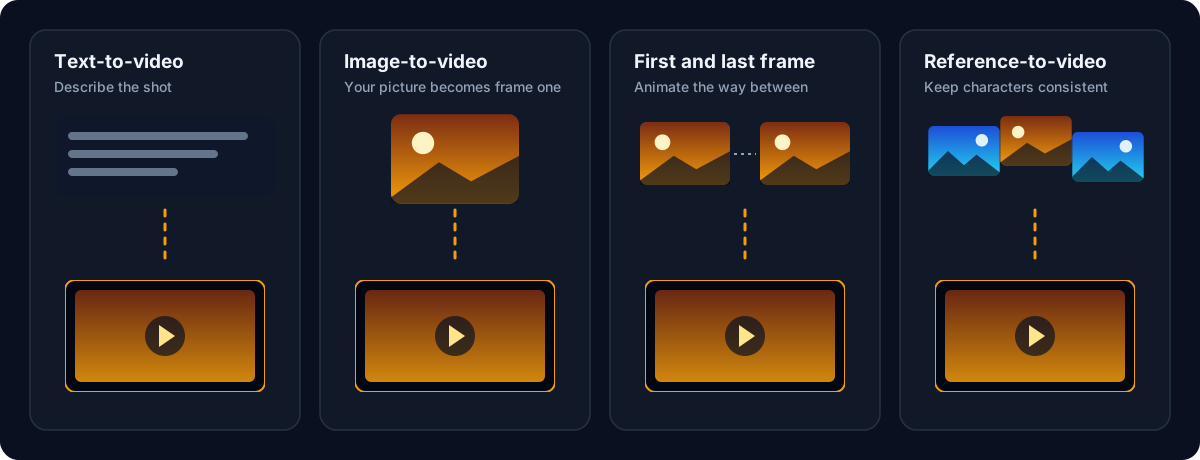
- Text-to-video: describe the shot and the model creates it. Every video model supports it.
- Image-to-video: give the agent a picture, such as a screenshot of your scene or a piece of concept art, and it becomes the first frame of the clip. Every video model supports it too.
- First and last frame: give a start frame and an end frame, and the model animates the way between them. Useful for transitions and for loops. Veo, Seedance, Kling, Wan, Hailuo and PixVerse support it.
- Reference-to-video: give several reference images, for example a character from a few angles plus a location, and the model keeps them consistent in a new shot. Veo 3.1 Standard, Seedance 2.0, Kling O3 and HappyHorse support it.
You do not have to remember any of this: the agent sees each model's modes, durations and resolutions, and you can simply ask for the result you want.
AI Audio Generation: Speech, Sound Effects and Music
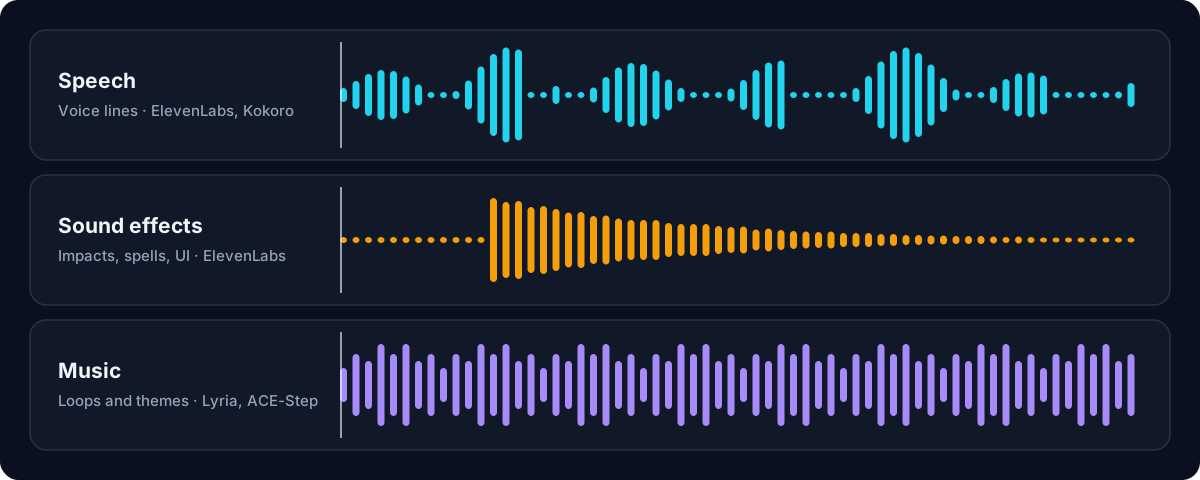
- ElevenLabs: speech with Turbo 2.5 and Eleven v3, and sound effects of 1 to 22 seconds with Sound Effects 2.
- Kokoro: speech in American English with 20 voices, run in the cloud.
- Lyria 2 from Google: instrumental music, 30 seconds per job.
- ACE-Step: instrumental music from an open-weights model.
For music you can also have the agent write procedural music and sound in code, as described in ai-game.dev/blog/ai-game-music-and-sound-supercollider.
How to Generate Video and Audio with the AI Agent
- Download or update the AI Game Developer App from ai-game.dev/download and sign in.
- Open the Models tab to browse the video and audio models and see which ones your account can use.
- In a chat session, turn on Cloud generation in the session's Tools. It is off until you turn it on, and you choose whether the app asks you before every job or lets the agent spend up to a budget you set as a percentage of your monthly allowance.
- Ask the agent for what you need, for example: make a 6-second clip of the hero walking into the cave, starting from this screenshot. You can name a model or let the agent pick one.
- Approve the job on its card. The card shows what the job uses, and the finished file is saved into your project.
Plans, Usage and Regions
Cloud generation is for paid plans: Indie, Studio and Studio Max. A few models need Studio or higher: Veo 3.1 Standard, Kling 3.0 Pro, Seedance 2.0 and Seedance 2.0 Fast. On the free plan and the trial you can browse the cloud models, but not run them.
Each cloud job uses a percentage of your monthly allowance, and a job that fails is not charged. When the allowance runs out, a job can use your extra balance, but only if you allow it on that job's card. Local models on your own computer stay free.
Some models are not available in the EU/EEA, the UK or Switzerland: Seedance, Kling, Wan, HappyHorse, Hailuo, PixVerse, ACE-Step and Gemini Omni. Veo, LTX, ElevenLabs, Lyria and Kokoro remain available there. You do not have to work this out yourself: the Models tab marks every model that is not available in your region, and the agent sees the same availability when it picks a model.
Keep What You Make
Generated files are kept on our servers for 7 days and then deleted, along with the images you uploaded for a job. The agent saves each result into your project as soon as it is ready. The cloud copy is gone after 7 days, so download anything you want to keep that is not already in your project.
Get Started
- Download the app: ai-game.dev/download
- Plans: ai-game.dev/pricing
- Local video generation on your GPU: ai-game.dev/blog/local-ai-video-generation-on-your-gpu
- Local image generation for games: ai-game.dev/blog/local-ai-image-generation-for-games
- Discord community: https://discord.gg/cfbdMZX99G
We would love to see what you make. Share your cutscenes, trailers and soundtracks in our Discord community.