Local AI Image Generation for Games — Textures and Icons on Your Own GPU
Generate and edit game textures and icons on your own GPU with AI Game Developer, in your project's art style, saved straight into the project.
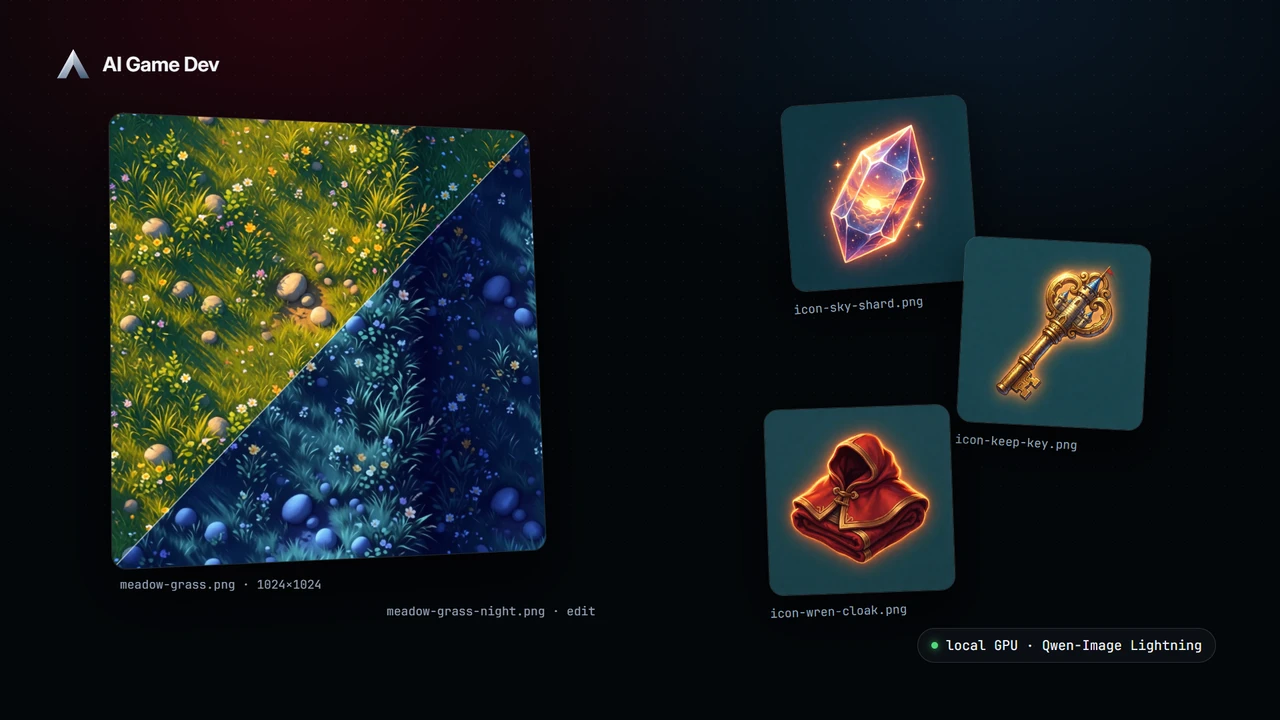
AI Game Developer can now run local AI image generation on your own GPU. You describe the texture or icon you need in chat, the agent generates it on your machine in your project's art style, and the finished file lands in the project, ready for Unity, Godot or Unreal. The image is rendered by your GPU, not by a remote service, and no model is downloaded until you approve it.
In this post we follow one session from our demo game, Skyward Keep, a cozy platformer about restoring a floating castle: a seamless grass texture for the first island, three item icons, and then a night version of the grass made by editing the first image. The video is a real recording of the app: the agent's replies are scripted for the demo, and every tool call in it ran for real.
Why Generate Game Images Locally
Game art is iterative. A tileable ground texture can take a dozen attempts before the scale, the colour and the seams are right, and a set of item icons needs the same lighting and palette across every file. Local generation fits that loop well:
- The images are rendered on your machine, and the drafts and references stay in your project folder.
- You can iterate as often as your hardware allows, without waiting on a remote queue.
- The images are written into the project, so the agent can use them in the same session: assign a texture to a material, build an inventory from icons, or edit an image into a variant.
The generator is stable-diffusion.cpp, running on your own hardware. Release 0.25.0 brought it into the app; the full notes are at https://ai-game.dev/releases/0.25.0.
Step 1: Turn On Image Generation and Pick a Model
Image generation is a tool in the session's Tools row: turn on Image Gen for the session where you want to make art. You can also manage models from the image models panel in the desktop app, or with the /images command in the gamedev CLI.
Each model describes the files it needs, its download size and the hardware tiers it fits. The app checks your graphics adapter, video memory and driver, and offers the models your machine can actually run. A model is downloaded only after you approve it, a download can be paused, resumed or cancelled from the notifications, and downloaded models are shared by every project on the machine. The model storage folder can be moved, for example to a larger drive.
Step 2: Ask for Assets in Plain Words
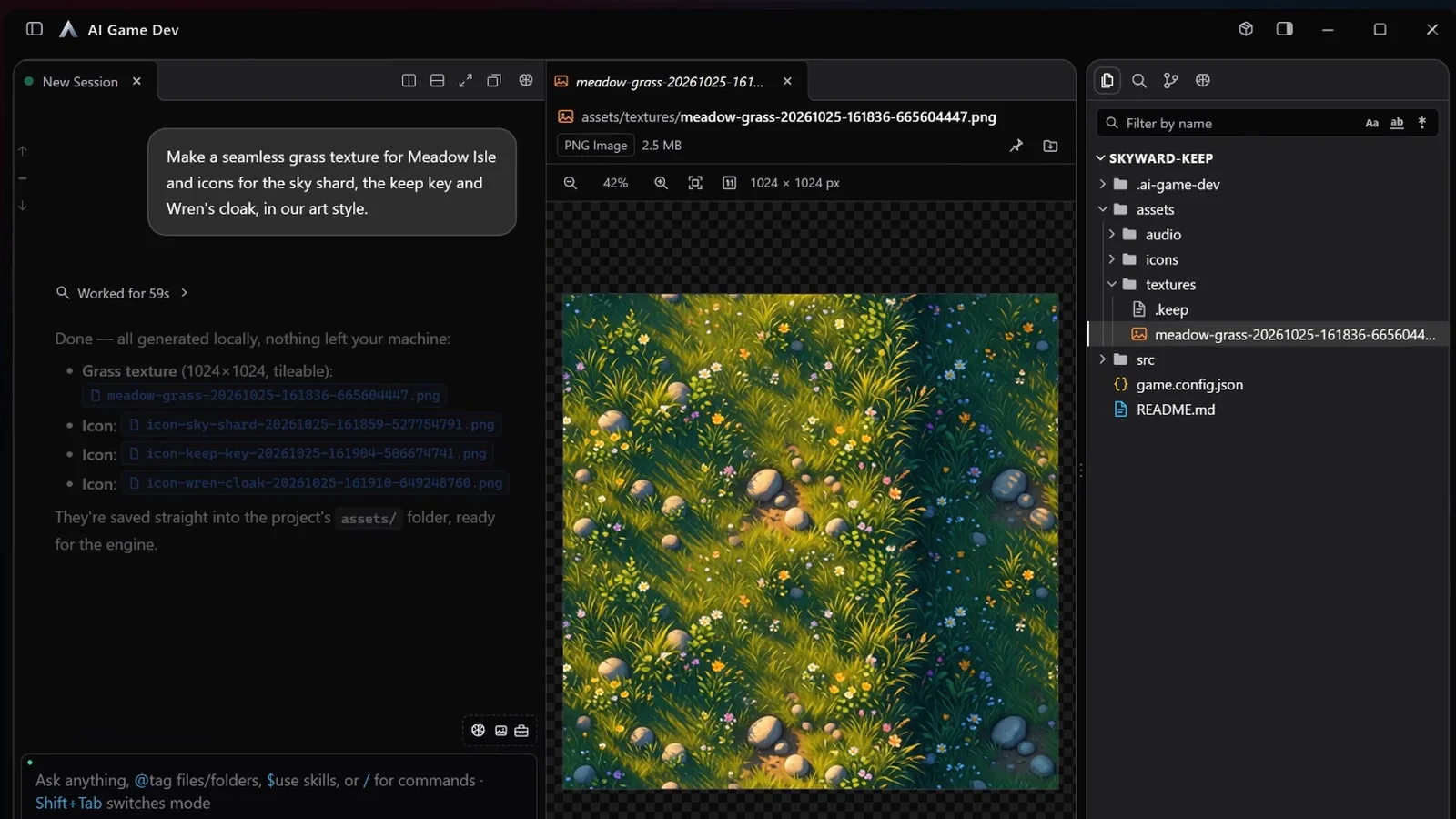
In the demo, the whole request is one sentence:
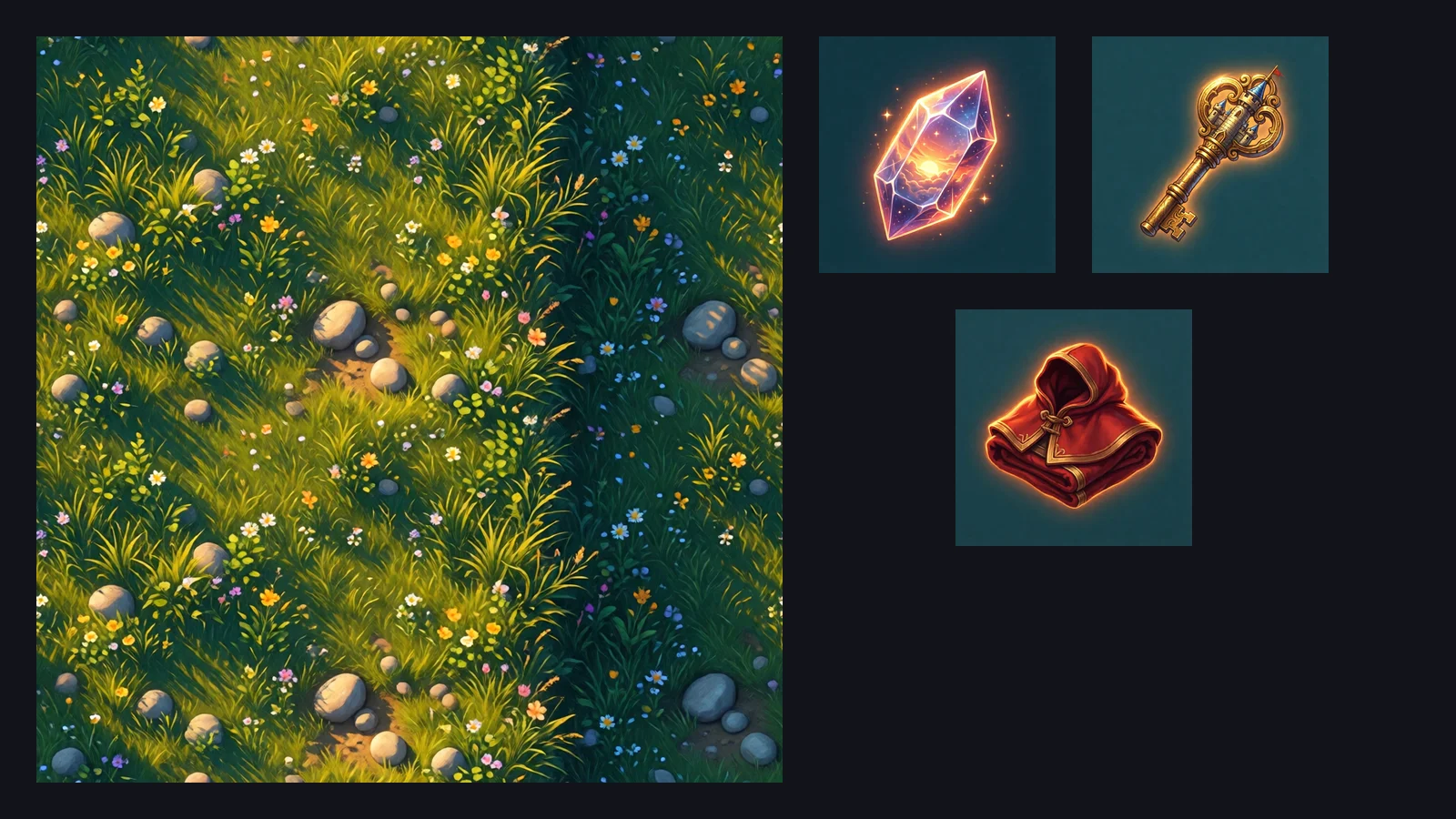
"Make a seamless grass texture for Meadow Isle and icons for the sky shard, the keep key and Wren's cloak, in our art style."
"Our art style" is not a guess. Skyward Keep keeps its decisions in a Knowledge Base, so the agent first searches it and finds the art direction: hand-painted, soft shading, a warm rim light, no outlines, a sunset palette. It then builds the prompts from that style and generates on the GPU with Qwen-Image-2512 Lightning, the texture first and then the three icons.
When it is done, the agent lists what it made: a 1024 by 1024 tileable grass texture and three icons, all saved into the project's assets folder, with the texture open in a preview pane next to the chat.
What Makes a Good Asset Prompt
If your project has no Knowledge Base yet, put the style in the request yourself. A good prompt names the subject, the style, the use in the game and the format:
- "A seamless top-down grass ground texture, hand-painted, small pebbles and wildflowers, warm sunlight."
- "A game item icon of a golden key, centred, soft shading, plain dark background."
- "A wide concept image of a ruined lighthouse at dusk, for the level select screen."
Ask for variations in the same session: darker, larger stones, fewer flowers. The agent keeps the context of what you asked before, and since release 0.25.1 the generation queue keeps a model loaded while it still has work, so a batch does not reload the model between images (https://ai-game.dev/releases/0.25.1).
Step 3: Edit from a Reference Image
Generation from text is only half of the job. Often you already have something close and want a variant. In the demo the follow-up is:
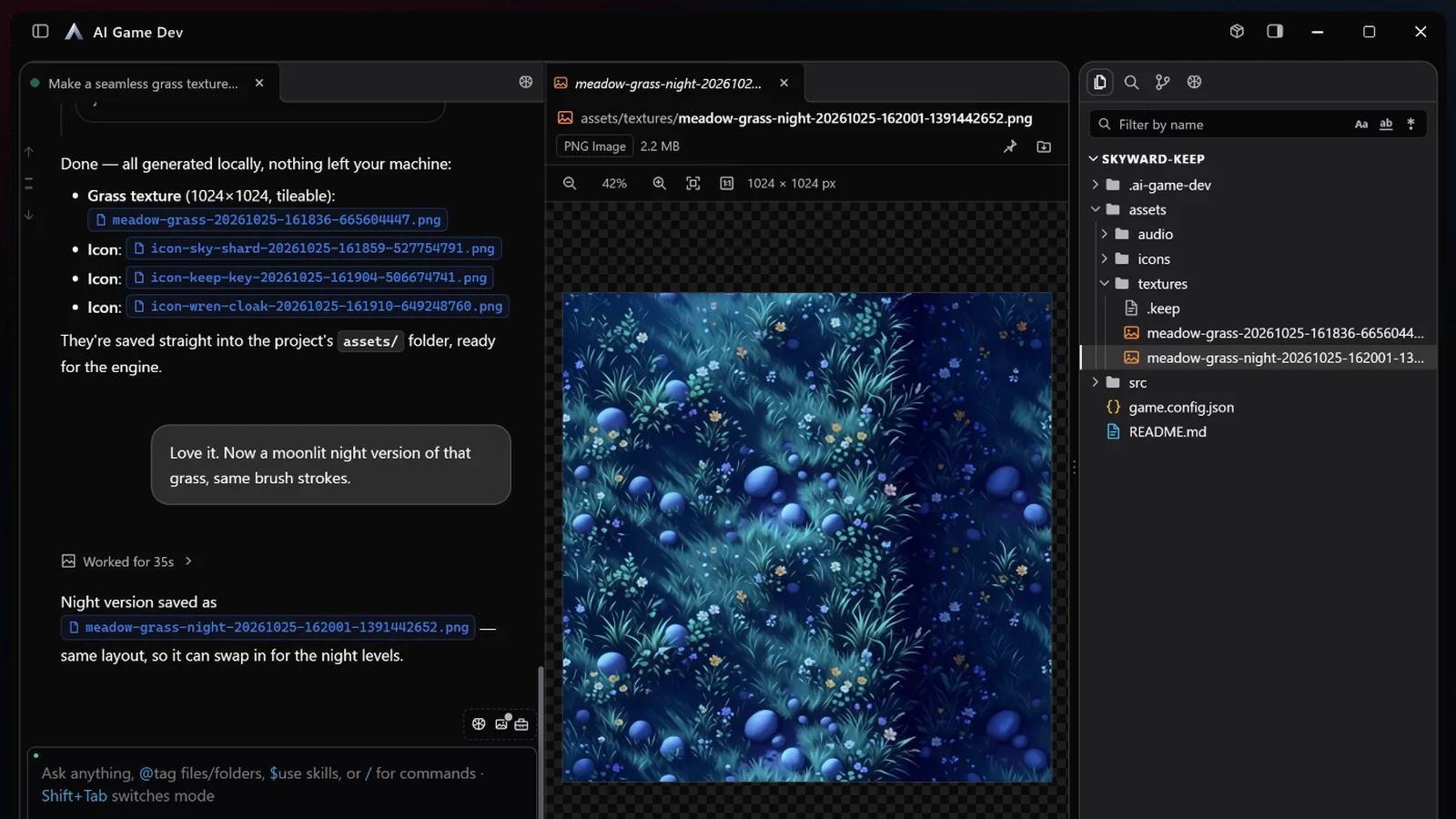
"Love it. Now a moonlit night version of that grass, same brush strokes."
The agent uses the texture it just made as the reference and edits it with Qwen-Image-Edit-2511 Lightning: cool blue light, deep indigo shadows, a soft moon glow on the grass tips, the same composition and brush strokes. The night version is saved next to the original, so a night level can swap one texture for the other.
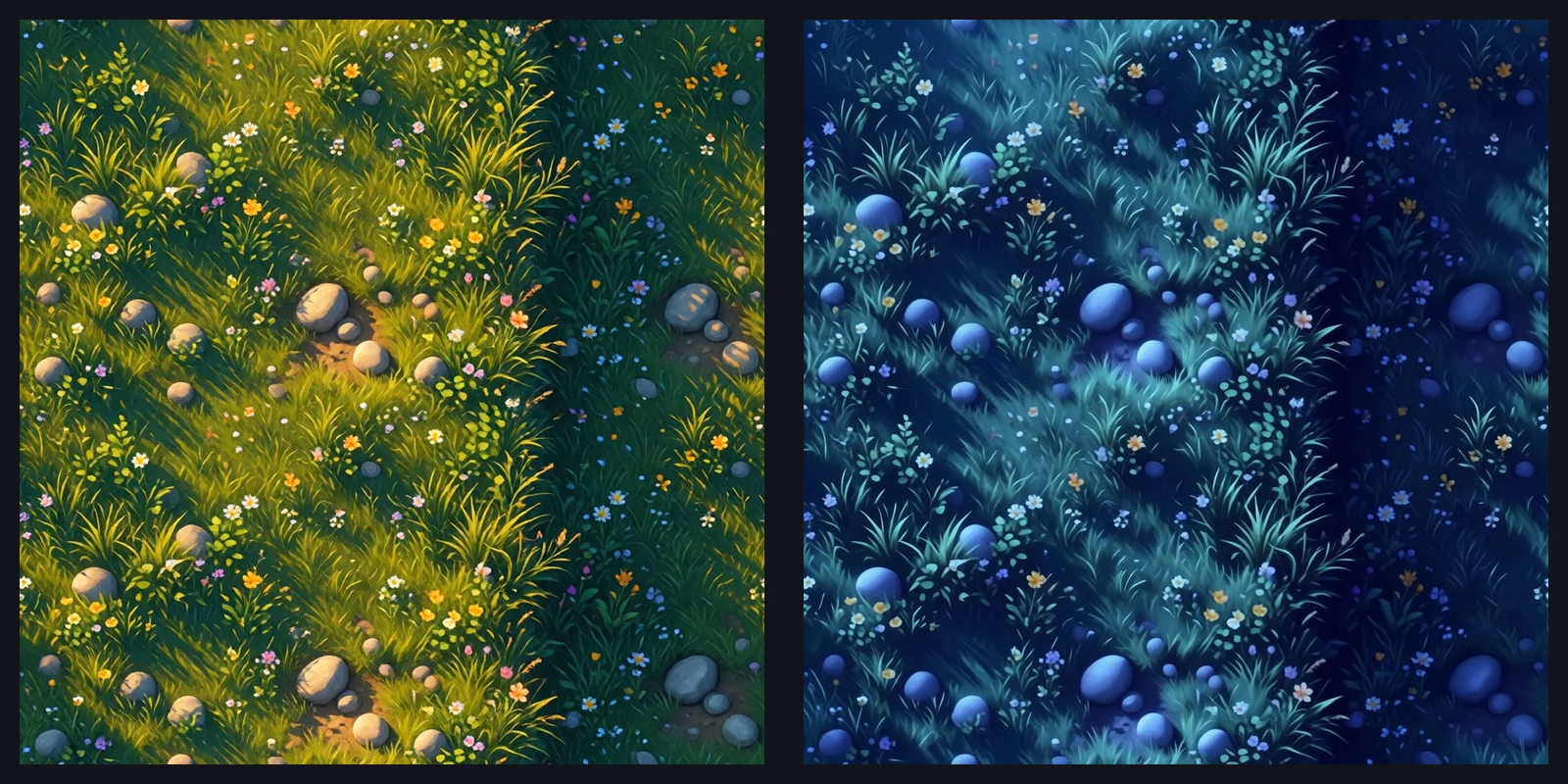
Editing changes text, colours, materials and objects by instruction and can combine up to four reference pictures. Being explicit about what must stay the same is the most useful habit here: "keep the silhouette and the outline, change only the armour colour to teal".
Step 4: Choose the Right Model for Each Asset
Each model in the panel says what it is good at, and the difference matters for game art. A short guide to the models available today:
- Qwen-Image and Qwen-Image-2512: the strongest prompt following and text rendering, for signs, posters and UI mockups.
- FLUX.1 schnell: sharp illustrations, icons and sprites in four steps.
- SDXL 1.0: the general-purpose base for illustrations and concept art.
- Juggernaut XL v9 and RealVisXL V5.0: photorealistic SDXL models for cinematic shots, characters and environments.
- Animagine XL 4.0: anime-style characters and illustrations, prompted with comma-separated tags rather than sentences.
- Z-Image Turbo: fast photoreal and illustrative images with legible short text.
- FLUX.2 klein 4B: a small model for Macs with Apple silicon, for illustrations, icons and sprites.
The Lightning variants of Qwen-Image-2512 and Qwen-Image-Edit-2511, the ones used in the demo, add a LoRA adapter that brings generation down to four steps, at roughly four to five times the speed of the full-quality versions. Use them while you explore, and switch to the full model for the final asset.
Step 5: Put the Asset to Work in the Engine
Because the files are already in the project, the next request can use them. In a Unity, Godot or Unreal project, finished images are imported into the engine as well, and follow-up prompts like these work in the same session:
- "Create a material from the grass texture and assign it to the Meadow Isle ground."
- "Import the three icons as UI sprites and add them to the inventory grid."
- "Use the night grass on the night version of the level."
This is where local generation and the engine connection meet: the agent that made the image also wires it into the scene. If you have not connected an engine yet, the app installs and connects the plugin for you; the setup is described at ai-game.dev/docs/app.
What to Expect from Your Hardware
Local generation is bound by your GPU, and most of the models above need an NVIDIA GPU with CUDA: 8 GB of video memory for the SDXL-based models and FLUX.1 schnell, and 16 GB plus 32 GB of system memory for the Qwen models. Z-Image Turbo is the exception that runs on AMD, Intel and integrated GPUs too, and FLUX.2 klein 4B is the choice for Apple silicon. The demo was recorded on an NVIDIA RTX 4090.
The runtime has variants for CUDA, Vulkan and Metal, plus a preview Linux build, and the app chooses the variant your driver and memory support. A launch that runs out of video memory is retried once with a smaller memory budget, and a silent fall back to the CPU is reported as a failure rather than hidden, so you always know why a run was slow or did not start.
Start with the model the app recommends for your machine, and move up only when the quality is the bottleneck.
Where Local Images Fit with the Rest of the App
Local images are one part of the asset tools in AI Game Developer. For 3D models, the Tripo tools turn reference images into meshes, and the Blender integration lets the agent build and edit models in a real editor. Short clips can be generated locally too, with the Video tool: the sky shard icon from this demo becomes an animated HUD icon in the post on local video. Each of these is a switch in the session's Tools row, so a session only carries the tools it needs.
If you are new to the app, start with the download at ai-game.dev/download, open your project, and ask for your first texture. Earlier posts on the blog, such as the full Unity walkthrough at ai-game.dev/blog/build-game-with-ai-claude-code, show how the same agent builds the scene that these assets go into.