Material Preview — See Unity, Godot and OBJ Materials Rendered in 3D
Open a Unity .mat, a Godot .tres or an .mtl and see it rendered on a sphere, cube or teapot you can spin, in a studio, a sky or a sunset.
A material file says very little when you read it as text. A Unity material is a page of YAML full of GUIDs and numbers, a Godot material is a list of properties and resource paths, and an OBJ material library is a column of letters like Kd, Ns and map_Bump. You only know what the material really looks like when you open it in the engine. Starting with the next update, the AI Game Developer desktop app shows it to you directly: click a material and it is rendered in 3D, with its textures, on a shape you can turn in your hands.
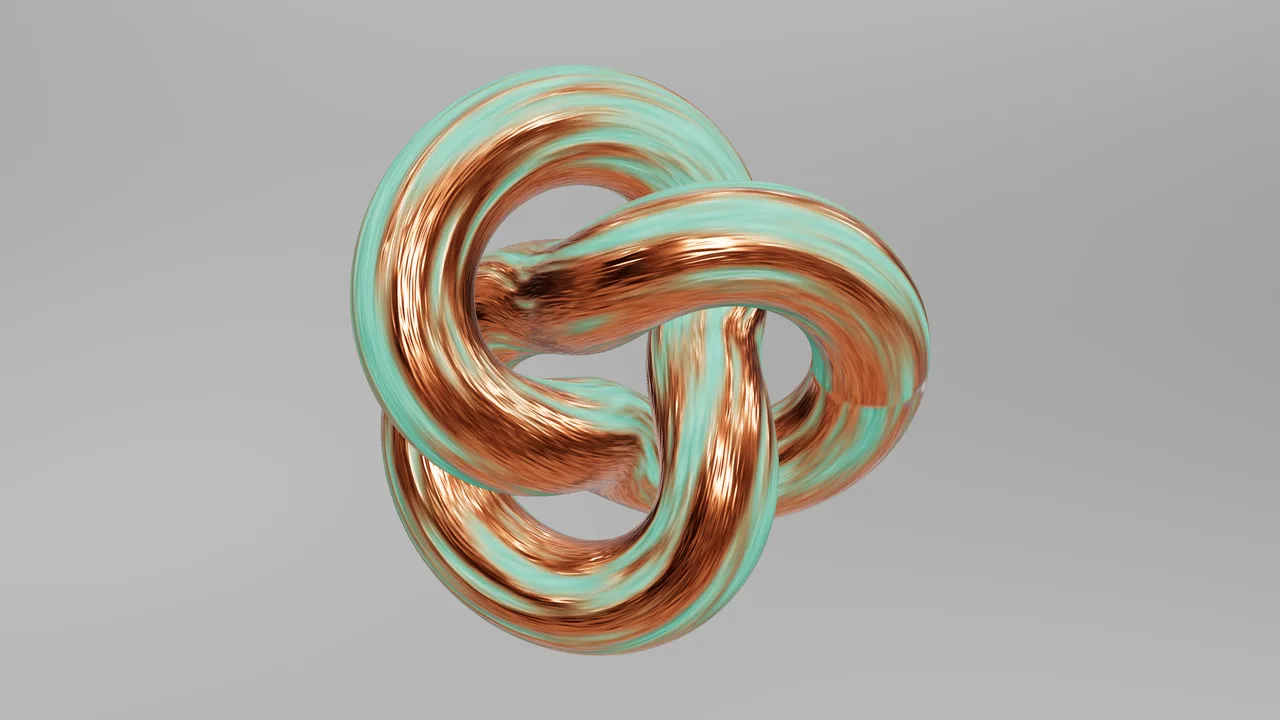
The picture at the top of this post is one of them: a Unity URP material, copper with green patina, drawn on a torus knot straight from its .mat file. No Unity editor was open.
Material Preview for Unity, Godot and OBJ Materials
The material preview lives in the same file windows as the rest of the app's previews. Click a material in the Explorer and it opens next to your chat, just like an image, a texture or a 3D model. If you have not seen those previews yet, our post about the workspace walks through them: ai-game.dev/blog/ai-game-dev-workspace-panes-previews-git
Here is what the preview understands today:
- Unity materials (.mat): the Standard shader, URP Lit, Simple Lit and Unlit, and HDRP Lit, including its mask map. Materials on your own shaders are drawn from their property names, so a _BaseMap, a _NormalMap or an _EmissionColor still lands in the right place.
- Godot materials (.tres): StandardMaterial3D, ORMMaterial3D, ShaderMaterial and the Godot 3 SpatialMaterial. Other .tres resources keep opening as text, as before.
- Wavefront material libraries (.mtl): every material in the file, with its colours, its maps and the common PBR extensions. You switch between them in a list.
- The materials inside a model: open a glTF, FBX or OBJ model and press the new Materials button to look at each of its materials on its own.
- PBR texture sets: open any texture, press Show as a material, and the app collects the rest of the set from the same folder, such as BaseColor, Normal, Roughness, Metallic, AO or a packed ARM map, and puts them together.
Real Textures, Found for You
A material is only as good as its textures, and finding them is the part that usually goes wrong outside the engine. The preview does that work for you.
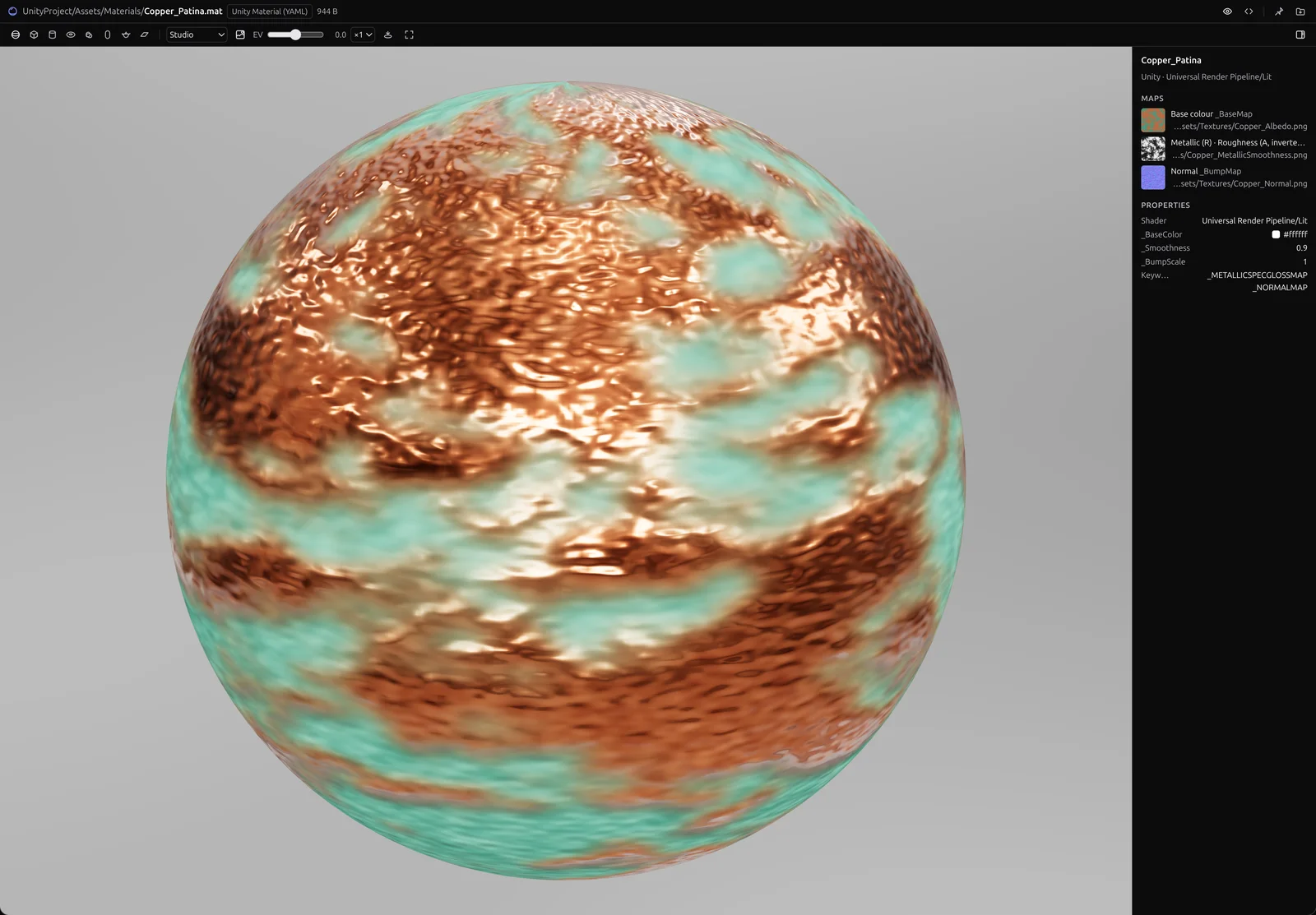
A Unity material does not name its textures: it stores their GUIDs. The app reads the .meta files around the material, starting next to it and moving outward through the project's Assets folder, and finds the image behind each GUID. A Godot material points at res:// paths, so the app finds the folder that holds project.godot and resolves them from there. An .mtl names its maps by file name, and the app looks next to the material and in the usual Textures folders.
The side panel then shows every map with a small thumbnail and the file it came from. If a texture cannot be found, the panel says so by name instead of drawing a silently black surface, so you know exactly what is missing.
Packed maps are read the way each engine packs them. Unity keeps metallic in the red channel and smoothness in the alpha channel of one texture; HDRP adds ambient occlusion to its mask map; Godot lets you pick the channel per map; glTF and ORM textures store occlusion, roughness and metalness in red, green and blue. The preview reads each one as it was authored, and turns smoothness into roughness where it has to.
Spin It, Light It, Change the Shape
The toolbar above the material is there to help you judge it from every angle:
- Shapes: sphere, cube, cylinder, torus, torus knot, capsule, teapot and plane. Drag to orbit, scroll to zoom.
- Environments: a studio, a daylight sky, a sunset, a neutral grey room and a dark studio. Each one lights the material and shows up in its reflections, so metals and glossy paint read correctly.
- Background: show the environment behind the shape as a skybox, or turn it off and look at the material alone.
- Exposure, texture tiling from ×1 to ×8, and a slow turntable.
Your choices are remembered. If you like checking materials on a torus at sunset, the next material opens the same way, in every window.
The preview also follows the file. When you, a teammate or the AI agent changes a material on disk, the window updates by itself. That makes it a quick way to check the agent's work: ask it to make the armour more worn or the lava hotter, and watch the material change next to the chat.
A Gallery of Materials
To show what it can do, we put together a small demo project: ten Unity materials, seven Godot materials, an OBJ material library, a glTF model with five PBR materials and three PBR texture sets. Every image below is a screenshot of the material preview, taken in the app.
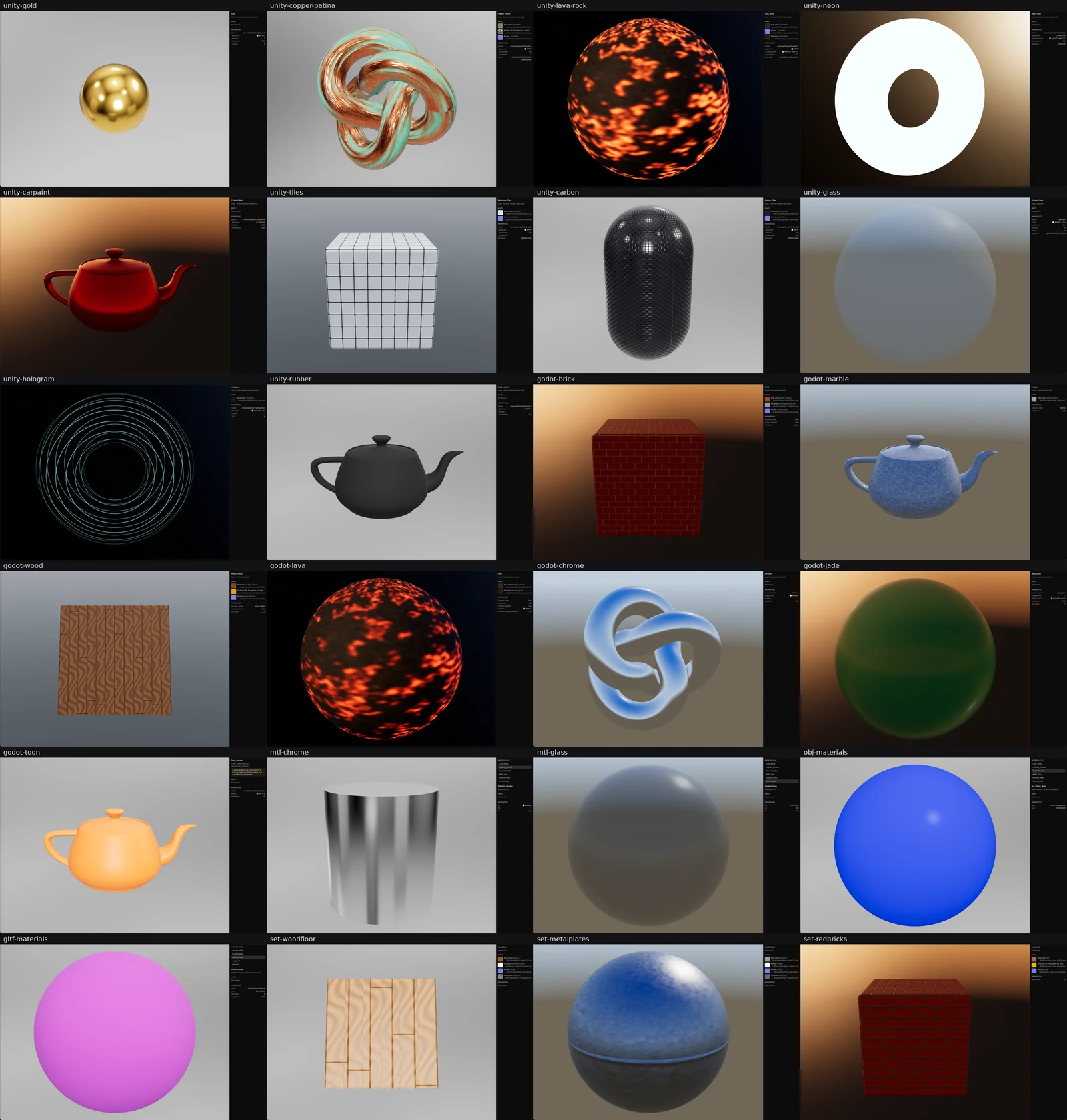
Gold and chrome reflect the studio and the sky. The lava rock and the neon glow because their emission is read from the material. Frosted glass and jade are see-through, the hologram is an unlit, transparent material, and the brick, tile, wood and metal plate sets get their depth from their normal maps.
What the Preview Does Not Do Yet
The preview draws materials with a standard physically based renderer, the same kind of model Unity, Godot and glTF use. For the built-in shaders that gets very close to what you see in the engine. A truly custom shader, such as a toon shader, water or a dissolve effect, runs code the preview cannot run, so it is shown as a best guess from its properties, and the panel tells you that it is an approximation.
Unreal Engine materials (.uasset) are not part of this release. Unreal stores its materials and textures as compiled engine packages, often compressed, which cannot be read reliably outside the editor. They keep opening as binary files for now. Every format that sits next to a model, such as .mtl, glTF and texture sets, works no matter which engine you use.
Try It
The material preview arrives with the next update of the desktop app. Get the app at ai-game.dev/download, open your project, and click a material in the Explorer. If you have a material that does not look the way it does in your engine, tell us on Discord or in the issue tracker: every example helps us make the preview more faithful.
It is a small feature with a simple goal. When you work with an AI agent on a game, you should see what it made, not read about it. Materials were the last everyday asset you could not see in the app. Now you can.