From Reference Images to a Game-Ready 3D Model — Tripo AI Inside AI Game Developer
Turn two to four reference views into one 3D model with Tripo in AI Game Developer, then texture, clean up, rig and animate it from the same chat.
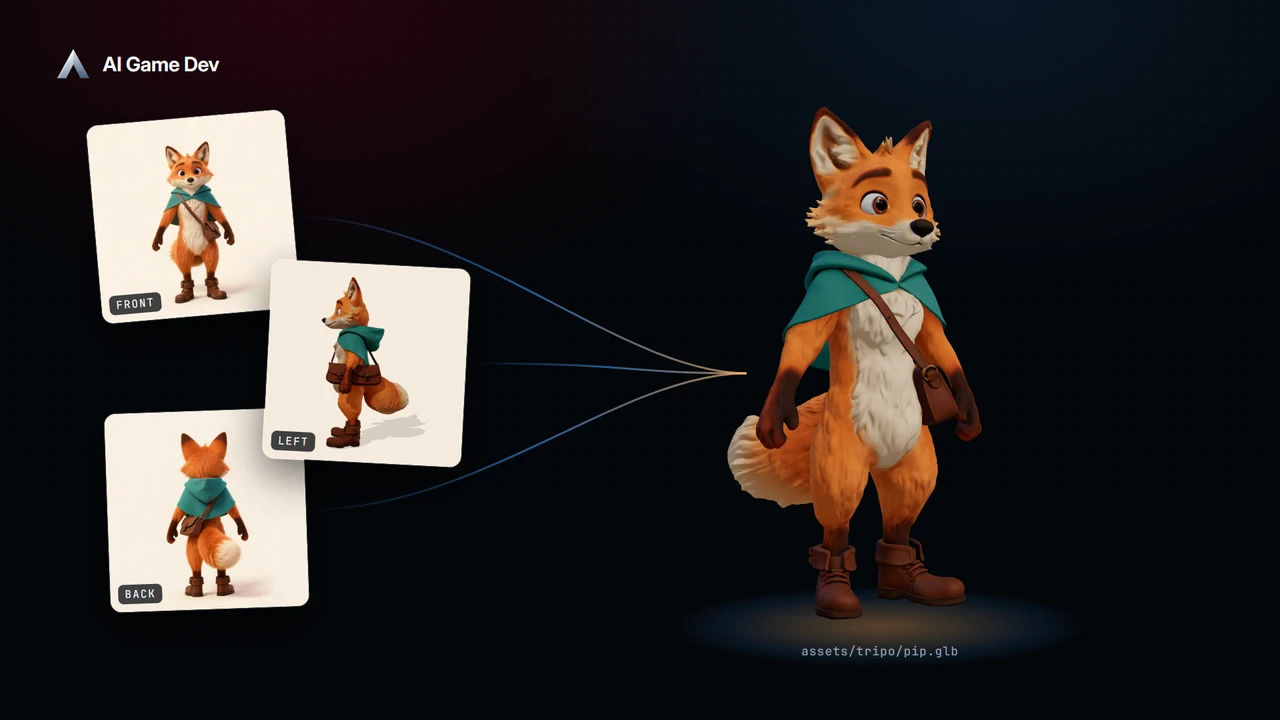
AI Game Developer now includes Tripo AI 3D model generation as session tools. You give the agent a reference image, or two to four views of the same object, and it returns a 3D model saved straight into your game project. The same chat then textures the model, cleans up the mesh, rigs it and adds animation, so one character or prop goes from a drawing to a usable asset without leaving the app.
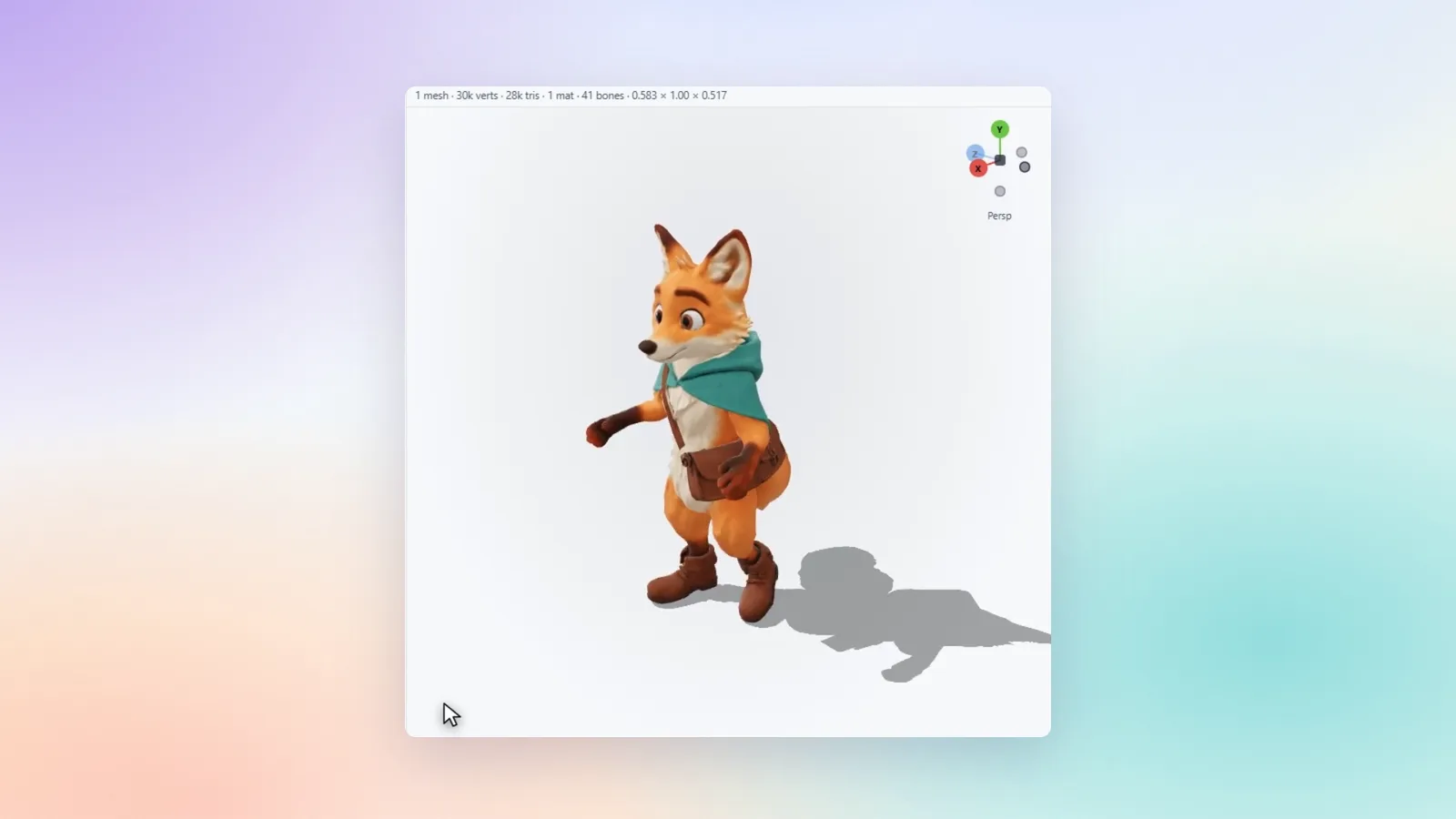
In this post we follow one session: Pip, a woodland fox courier with a teal cape and a leather satchel, goes from three character views to a textured, rigged Tripo model, and then gets a looping run cycle. The model and the rig in the video are real Tripo generations; the run cycle was animated locally on Tripo's rig. We also cover what you need to know about access and paid operations before you start.
What the Tripo Tools Can Do
Tripo arrives in the session's Tools row as five separate tools. You turn on only the ones you need for this session, and each has its own settings popup:
- 3D: generate a model from a text prompt, from one image, or from two to four views of the same object.
- Textures: texture an existing model, guided by a short prompt.
- Mesh: retopologise a model to a face budget, split it into parts, and convert it to GLTF, FBX, USDZ, OBJ, STL or 3MF.
- Rig and animate: check whether a model can be rigged, rig it as a biped or a quadruped, and apply an idle, walk or run animation.
- 2D: generate or edit an image from a prompt, and turn one image into several views of the same object.
The agent only sees the tool groups you enabled, and only the variants the server offers for your account. That keeps the agent's context small and makes it clear which operations a session is allowed to run.
Step 1: Prepare Your Reference Views
The newest addition, in release 0.25.10, is multiview generation: you supply a front view plus any combination of the left, back and right views, and Tripo builds a single model that agrees with all of them (https://ai-game.dev/releases/0.25.10).
A few things make the result much better:
- Use the same subject, scale and pose in every view. A character in a neutral A-pose or T-pose rigs more cleanly later.
- Keep the background plain and the lighting flat, so the shape reads clearly.
- Make every view a genuinely different angle. The tool rejects duplicate files, so each upload adds new information.
The views can come from anywhere: concept art, a turnaround drawn by your artist, or images generated locally in the app with the image tools. If you only have a single front image, the 2D tool can generate the other views from it first. Put them in the project folder, and you can refer to them by path in chat.
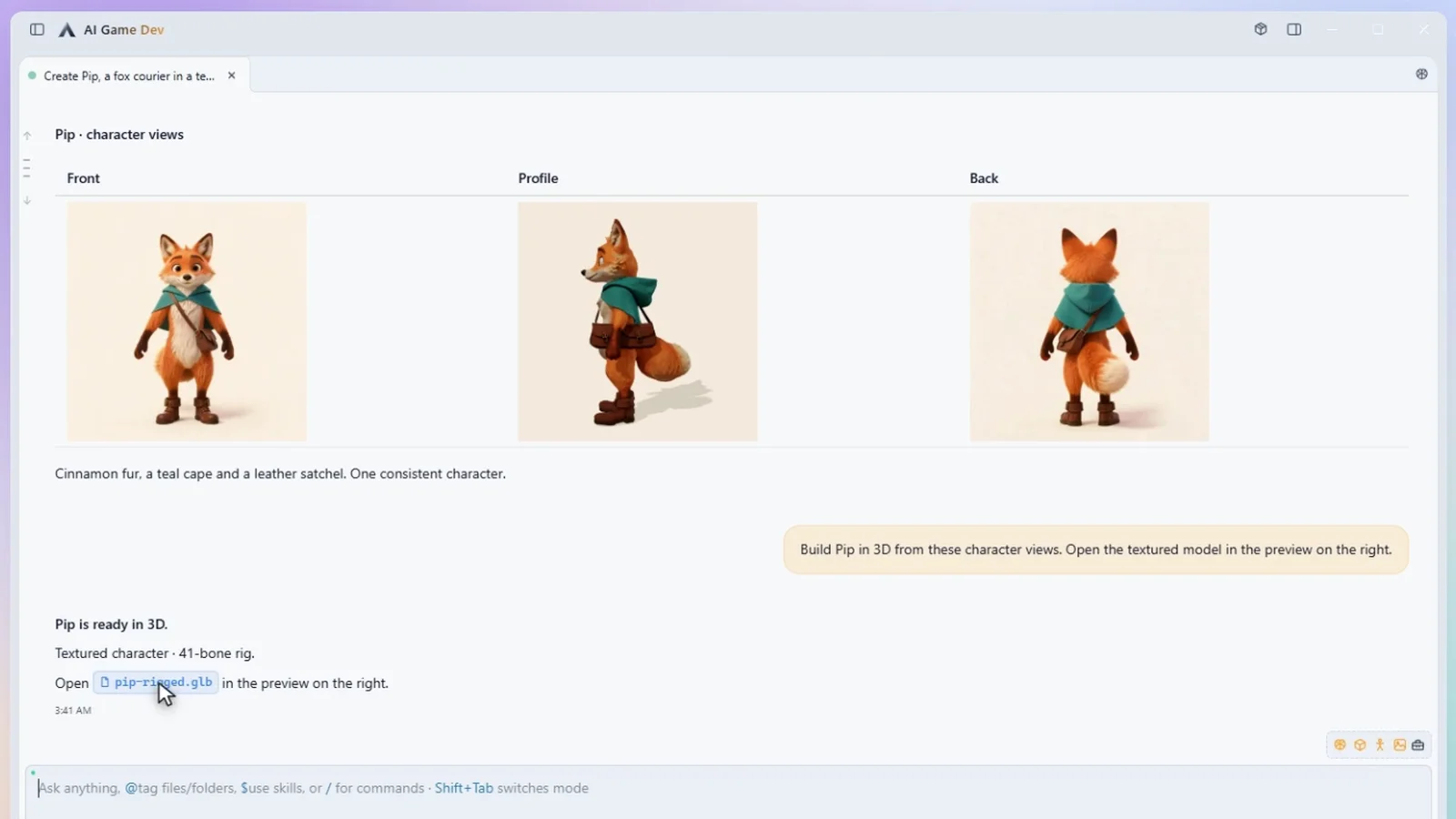
In the demo, the agent first produces Pip's character views in the chat: front, profile and back, one consistent character in a neutral standing pose on a plain background.
Step 2: Generate the Model
Turn on the 3D tool for the session and ask for the model. In the demo the request is: "Build Pip in 3D from these character views. Open the textured model in the preview on the right."
Before anything is charged, the app shows the paid-operation approval card. Each view is uploaded privately and in parallel, and the request then runs to completion inside one operation. When it finishes, the agent receives the saved project file paths for every artifact, or a clear failure with the reason. It does not poll job status or fetch the results by hand.
The output location is chosen up front and survives a lost connection. If the job is interrupted, the result is recovered without paying for the generation again.
Step 3: Inspect the Result in the App
Open the saved model in a preview pane next to the chat. The 3D preview resolves the textures the model ships with, has switchable lighting and shadows, and an orientation gizmo that shows which way the model faces. This is the moment to check the silhouette, the proportions and the facing direction before you spend more operations on it.
Each Tripo tool's settings popup also shows how many assets it has produced in this session, and lists them. Files open in the project viewer or the file manager, and nothing opens on its own.
Step 4: Textures and Mesh Clean-Up
If the shape is right but the surface is not, turn on the Textures tool and ask for a new texture pass with a short description of the materials: "worn leather jacket, brass buttons, matte cloth trousers". If the geometry needs work, the Mesh tool retopologises the model to a face limit between 500 and 20,000, which is what you want for a real-time game rather than a render. It can also split a model into parts and convert it to the format your engine prefers, such as FBX or GLTF.
Keep the requests small and check the preview after each one. A sequence of focused steps is easier to approve and easier to undo than one large request that changes everything.
Step 5: Rig and Animate
With the Rig and animate tool on, the agent first checks whether the model supports rigging, then rigs it as a biped or a quadruped and applies one of the preset animations: idle, walk or run. Apply them one at a time and check each in the preview before you move on. In the demo, Pip ends up as a textured character with a 41-bone rig. The last request, "Add a looping run animation to Pip", is a run cycle animated locally on that existing rig, and it plays in the preview with the model's shadow on the ground. You can also use Tripo's own run preset instead.
The animated model is saved into the project like every other artifact. From there the engine connection takes over: in a Unity, Godot or Unreal project the agent can import the model, set up the character in the scene and connect the animations to your controller. The earlier post on animation in Unity, at ai-game.dev/blog/generating-unity-animations-with-ai, shows that part of the workflow in more depth.
Access, Approvals and Your Allowance
Tripo operations are paid operations, and they work differently from ordinary chat:
- Access depends on your plan and the permissions the server grants your account, not on a fixed free allowance. Image and 3D generation require a subscription; the current plans are on ai-game.dev/pricing.
- Before submitting, the app gets an estimate from the server and asks for your permission. You can approve a single operation, the whole session, or a budget you choose as a percentage of your allowance. Turning a tool on is not consent to spend.
- Operations use your existing subscription allowance, and your usage is shown in the app as a percentage of it.
Since release 0.25.8 the Tripo tools run in the gamedev CLI as well as in the desktop app, with the same approval checks, and the recovery journal for interrupted paid jobs is shared between the two (https://ai-game.dev/releases/0.25.8).
Tripo, Blender or Local Images?
Tripo is the fastest way to get from references to a complete, rigged model. When you need precise control over the geometry, the Blender integration lets the agent build and edit a model step by step in a real editor, and the two work well together: generate a base with Tripo, then refine it in Blender. For the reference views themselves, local image generation on your own GPU is a good starting point.
All three are tools in the same Tools row. Download the app at ai-game.dev/download, turn on the 3D tool in a session, and start with a single prop before you take on a full character.