AI Sprite and Pixel Art Generator: What Works in 2026
Which AI sprite and pixel art generator to use for game art in 2026, how to get clean pixels and transparent sprites, and where sprite sheets still break.
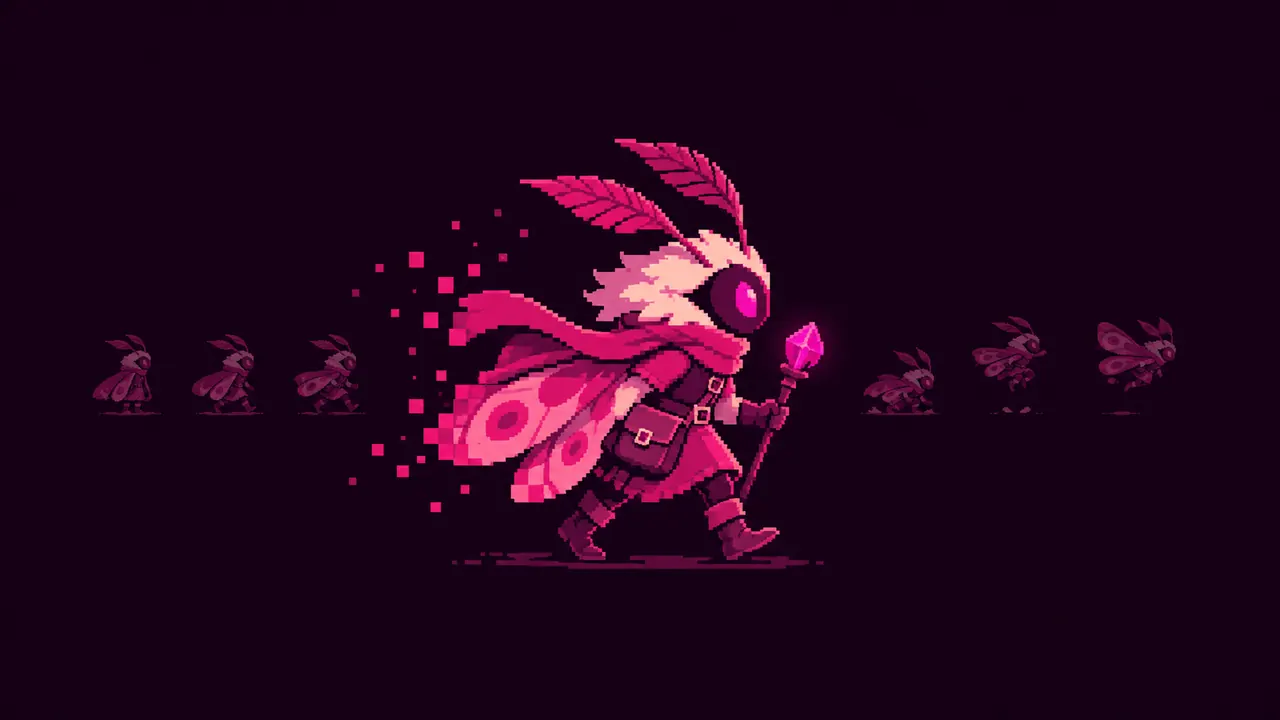
The best AI sprite and pixel art generator depends on the kind of sprite you need. For single sprites, icons, items and props, a strong general image model such as GPT-Image 2.6 gives the best quality today, and in our experience it is the fastest way to get there, either from Asset Studio in AI Game Developer or from the agent in chat. For strict low-resolution pixel art with a locked palette, tiles and frame animation, dedicated tools such as PixelLab and Retro Diffusion are the better fit. A local Stable Diffusion setup with a pixel art LoRA is the option for people who want full control and no per-image cost. Sprite sheets and frame animation are still the weak spot of every tool, and this post is honest about where they break.
The Short Answer: Which Tool for Which Sprite
- If you need a hero sprite, an item, an icon set or a prop with a transparent background, start with GPT-Image 2.6 in Asset Studio. It follows prompts best and draws the cleanest shapes.
- If you need true pixel art at 16, 32 or 64 pixels with a fixed palette, pick a dedicated pixel art model: PixelLab or Retro Diffusion.
- If you need 4 or 8 facing directions of one character, PixelLab is built for that.
- If you need walk, idle and attack cycles from one still image, Retro Diffusion and PixelLab both have animation tools. Expect to clean up frames by hand.
- If you need full control, offline work and no per-image price, run Stable Diffusion XL locally with a pixel art LoRA.
- If you need a quick prototype character, a whole sprite sheet from one general model prompt is fine. For a shipped game, plan for a cleanup pass.
Why Pixel Art Is Hard for AI
General image models do not draw on a pixel grid. They paint a high-resolution picture that looks like pixel art from a distance. Zoom in and you find the usual problems:
- Pixels of uneven size: one "pixel" is 7 screen pixels wide, the next one is 9.
- Anti-aliased edges and soft gradients where pixel art should have hard steps.
- Dozens of near-identical colours instead of a palette of 8 to 32.
- No real transparency: a white or checkered background baked into the image.
- Drift between images: the same knight with a slightly different helmet each time.
None of this matters for a quick prototype. All of it matters once the sprite sits next to hand-made tiles at an integer scale on a 1080p screen. The workflow below fixes most of it after generation, and the dedicated tools avoid much of it from the start.
Option 1: Asset Studio and GPT-Image 2.6
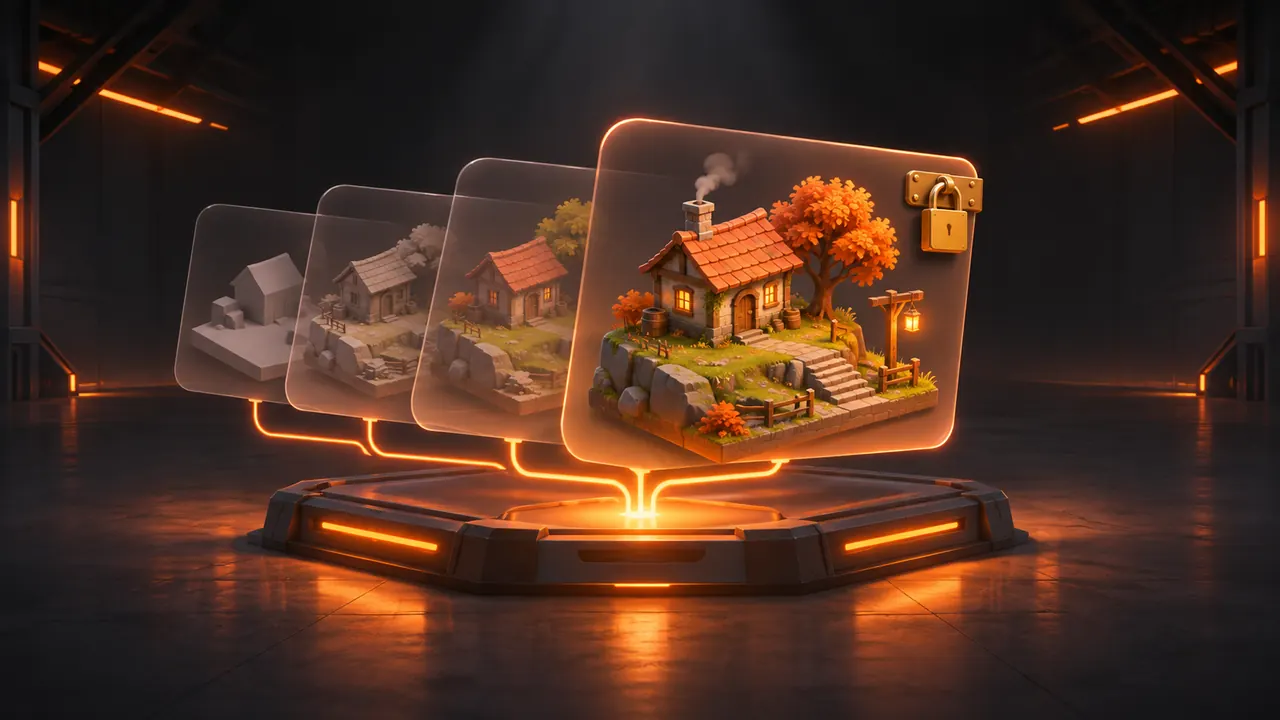
Our first recommendation is Asset Studio, the generation tab in the AI Game Developer desktop app, with GPT-Image 2.6. It is the tool we use ourselves for sprites, items and icons. The model comes in two flavours: Flare, available on every plan including the free trial, and Sunburst on paid plans. The post at ai-game.dev/blog/new-ai-models-fable-5-2-gpt-image-2-6 shows unedited examples, including a fox knight sprite sheet and sixteen matching inventory icons from one prompt each.
What makes Asset Studio practical for sprite work:
- The OpenAI image model exposes its own settings: aspect ratio, quality, background and file format. Set the background to transparent and the format to PNG or WebP, and you get a sprite with real alpha instead of a baked-in backdrop.
- One job can produce up to ten images, so you can generate ten variants of a potion and keep the best.
- A fixed seed lets you repeat a result and change one thing.
- Every result is saved into your project with a readable name, and the history rail brings back the exact prompt, model, settings and inputs of any past job.
- Reference pictures go into the composer, so you can drop in your existing character and ask for a new pose or a recoloured variant.
The full tour is at ai-game.dev/blog/ai-asset-generation-asset-studio. If you prefer to stay in chat, ask the agent for the same thing: "an icon set for the inventory, pixel art, transparent background". It picks the model, runs the job and saves the files into the project. Usage counts against your plan's allowance and is shown as a percentage.
Where it is weaker: GPT-Image draws pixel art, it does not compute it. Expect the grid problems from the section above and plan a downscale and palette pass for anything that must be pixel-perfect. At very small sizes, such as 16 by 16 items, a dedicated pixel art model usually gives a cleaner result.
Prompts That Work for Sprites
A sprite prompt should name the subject, the style, the size you will display it at, the view and the background:
- "Pixel art sprite of a fox knight with a red scarf, side view, facing right, 32 by 32 pixel look, limited palette, hard edges, no anti-aliasing, transparent background."
- "Game item icon of a blue mana potion, pixel art, 16-bit style, centred, one-pixel dark outline, transparent background, no text."
- "Top-down RPG tree, pixel art, three-quarter view, matching a 16-colour palette of muted greens and browns, transparent background."
For a set, keep everything except the subject identical and say so: "same style, same outline, same lighting from the top left as the previous icons". Drop the last good result into the composer as a reference, and the next item lands much closer.
Option 2: Dedicated Pixel Art Generators
Two tools stand out for pixel art specifically. Prices and features below are as of November 2026; check the sites before you subscribe.
PixelLab
PixelLab (https://www.pixellab.ai) is built around game sprites. Its site lists 4 and 8 directional views of characters and objects (including isometric), animation from a text prompt or a skeleton, style-consistent generation, inpainting, tilesets for top-down maps (square, isometric, hexagonal and oblique) and UI elements. It has an Aseprite extension and an API with MCP access for AI agents. PixelLab is sold as a subscription; we could not confirm the current tiers on the official site, so check them there.
Pick it if your game needs a character from many directions or tilesets for a top-down map.
Retro Diffusion for Clean Pixel Art
Retro Diffusion (https://www.retrodiffusion.ai) focuses on clean low-resolution pixel art. Its site lists several models with fixed size ranges, for example RD Mini for 16 to 64 pixel sprites and RD Core for images up to 512 pixels, plus a tileset model, seamless tiling, palette locking and palette conversion (including Lospec palettes). Its Advanced Animations tool turns one still image into a looping sprite sheet of 4 to 16 frames with presets such as Walking, Idle, Attack and Jump, with transparent backgrounds. As of November 2026 it is pay per image: from $0.03 per image for RD Mini to $0.18 for RD Pro, animations from $0.10, and a REST API and MCP server at the same prices. A separate paid Retro Diffusion extension for Aseprite exists on itch.io.
Pick it if you need true small-resolution sprites with a strict palette and you prefer paying per image over a subscription.
Option 3: Local Stable Diffusion with a Pixel Art LoRA
If you have an NVIDIA GPU with 8 GB or more of video memory, you can generate pixel art locally with no per-image cost. A well-known setup is the Pixel Art XL LoRA (https://huggingface.co/nerijs/pixel-art-xl) on top of Stable Diffusion XL 1.0, in a tool such as ComfyUI. Its model card recommends downscaling the output by a factor of 8 with nearest-neighbour resampling, using a fixed VAE and no refiner, and it works without a trigger word. The licence is CreativeML OpenRAIL-M, which allows commercial use with use restrictions: read it before you ship.
AI Game Developer also runs local image models on your own GPU, without using your allowance, both in Asset Studio and from chat. Among them FLUX.1 schnell is the one we recommend for sprites and icons, and SDXL 1.0 is available as a general base. The hardware guide is in ai-game.dev/blog/local-ai-image-generation-for-games.
The trade-off: local is free per image and fully private, but you trade time for it. Setup, model choice and settings are on you, and quality per attempt is below GPT-Image 2.6 and the dedicated tools.
Clean Up AI Pixel Art: A Checklist
Whatever generator you use, this pass turns "looks like pixel art" into pixel art that sits right in a game:
- Decide the real sprite size first, for example 32 by 32, and the scale it is drawn at.
- Downscale the generated image to that size with nearest-neighbour resampling, never bilinear or bicubic.
- Reduce the colours to your game's palette. Aseprite, Retro Diffusion's free palette converter or any colour reducer will do.
- Fix the outline and the few pixels the reduction got wrong by hand. On a 32 by 32 sprite this is minutes, not hours.
- Check transparency: no stray semi-transparent pixels at the edges, no leftover background.
- Import with point filtering, no compression and no mipmaps, so the engine does not blur it.
In Unity, the import settings for pixel art look like this. Ask the agent to apply them to a folder, or use it as an editor script:
using UnityEditor;
using UnityEngine;

// Put this in an Editor folder: every texture under Assets/Art/Pixel
// is imported as a crisp pixel art sprite; textures in the Sheets
// subfolder are imported as sprite sheets to slice.
public class PixelArtImporter : AssetPostprocessor
{
    void OnPreprocessTexture()
    {
        if (!assetPath.StartsWith("Assets/Art/Pixel")) return;

        var importer = (TextureImporter)assetImporter;
        importer.textureType = TextureImporterType.Sprite;
        importer.spriteImportMode = assetPath.StartsWith("Assets/Art/Pixel/Sheets/")
            ? SpriteImportMode.Multiple
            : SpriteImportMode.Single;
        importer.spritePixelsPerUnit = 32;
        importer.filterMode = FilterMode.Point;
        importer.textureCompression = TextureImporterCompression.Uncompressed;
        importer.mipmapEnabled = false;
    }
}
Set the pixels per unit to your sprite size, so one sprite is one world unit. In Godot, set the default texture filter of the project to Nearest under Rendering, Textures, Canvas Textures, or set the filter per node.
Sprite Sheets and Frame Animation: The Honest Part
This is where AI sprite generation is weakest, and it is worth knowing before you plan a game around it.
What works well:
- A single character in one pose, in many variations.
- Item and icon sets in one consistent style.
- A whole sprite sheet as a prototype. GPT-Image 2.6 can draw a character in several rows of poses in one image, and that is enough to get a character moving in an afternoon.
- Short loops from a still image with Retro Diffusion or PixelLab animation tools: idle breathing, a simple walk, a flickering torch.
What still breaks:
- Frames do not line up. A general model draws the sheet as one picture, so the character's feet, size and centre move from frame to frame and the cells are not evenly spaced. Slicing by a fixed grid then cuts limbs.
- Details drift between frames: a belt buckle on one frame, gone on the next.
- Motion is not real motion. A run cycle often reads as a set of poses rather than a smooth cycle, and fast actions such as attacks lose the anticipation and follow-through that make them feel good.
- Long or complex animations, such as a 12-frame combo, are rarely usable without heavy manual work.
Our practical recommendation:
- Generate the character once, as a clean single sprite, and lock that as the reference.
- Generate each animation separately from that reference, with a dedicated animation tool where you can, rather than the whole sheet in one prompt.
- Bring the frames into Aseprite or a similar editor, align them to a fixed cell and a common pivot at the feet, and fix the palette.
- Treat the AI frames as keyframes and tweens to correct, not as the final animation. For the main character, budget time for a human pass.
- Slice in the engine by cell size, not automatically, once the frames are on an even grid. In Unity this is the Sprite Editor with Grid By Cell Size.
For effects such as sparks, smoke and magic, consider not drawing frames at all: a particle system often looks better and costs less work. Our Unity particle extension post at ai-game.dev/blog/unity-ai-particle-system-extension shows the agent building effects in the editor.
From Generator to Game with AI Game Developer
Generation is half of the job; the other half is getting the sprite into the game. With an engine connected, the agent in AI Game Developer acts inside the live editor, by writing and running short code, C# in Unity and Godot, Python in Unreal. So the follow-up requests after generation are ordinary chat:
- "Import everything in Assets/Art/Pixel as pixel art sprites: point filter, no compression, 32 pixels per unit, single sprites by default and sprite sheets only in the Sheets subfolder."
- "Slice the knight sheet into 32 by 32 cells and make an idle animation from the first row."
- "Build a tile palette from the grass tiles and paint the first island."
In Unity the Tilemap extension lets the agent create grids and tilemaps, paint and box-fill tiles and create Tile and RuleTile assets. Start at ai-game.dev/engines/unity, or with Godot at ai-game.dev/engines/godot.
Try It
Download AI Game Developer at ai-game.dev/download, open your project and click the sparkle button in the title bar to open Asset Studio. Choose GPT-Image 2.6, set the background to transparent, describe your first sprite, and generate ten variants. Keep the best one, run it through the cleanup checklist above, and ask the agent to import it into your engine. When you hit the limits of a general model for strict pixel art or animation, add PixelLab or Retro Diffusion for those parts: the files all end up in the same project.