What Is MCP? How It Connects AI to Your Game Engine
MCP explained for game developers in plain words, how it lets an AI agent work inside Unity, Unreal or Godot, and a five-minute setup.
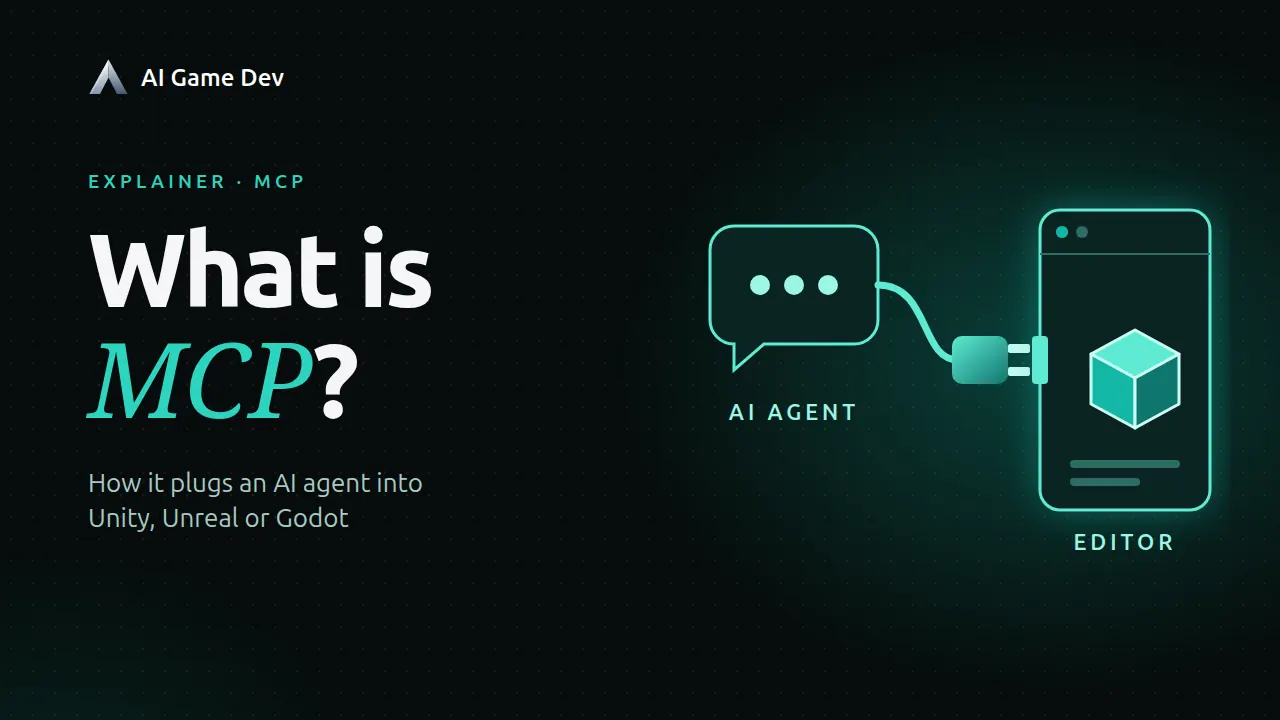
MCP, the Model Context Protocol, is an open standard that lets an AI agent use tools in other programs. For game development it means this: an AI model that normally can only write text gets a set of real actions inside your Unity, Unreal Engine or Godot editor, such as "list the objects in this scene", "add a Rigidbody to the player" or "run the tests", and it calls those actions itself while it works. A small plugin in the editor offers the actions, an MCP server passes the calls along, and the agent decides which ones to use.
If you have never heard of MCP, this post is for you. It explains what the protocol is without jargon, follows one request from the chat to the editor and back, compares the local and cloud ways to run it, and then gets you connected in about five minutes with AI Game Developer.
What Is MCP, in Plain Words
Think of MCP as a USB port for AI. Before USB, every printer, mouse and camera needed its own cable and its own driver. Before MCP, every AI tool that wanted to talk to another program needed its own custom integration, written separately for every pair. MCP replaces that with one shared plug: any AI client that speaks MCP can use any program that offers an MCP server.
Anthropic introduced MCP in November 2024. In December 2025 it donated the protocol to the Agentic AI Foundation, a fund under the Linux Foundation co-founded by Anthropic, Block and OpenAI, so MCP is now governed as a neutral open standard. As of November 2026 the current specification revision is dated 2026-07-28 (https://modelcontextprotocol.io/specification/latest), and MCP is supported by Claude, ChatGPT, Cursor, GitHub Copilot, Gemini, VS Code and many other clients.
Three words cover most of what you need:
- Client (or host): the AI application you talk to, such as Claude Code, Cursor, Codex or the AI Game Developer app. It runs the model and the conversation.
- Server: a program that offers capabilities to the client. It says "here is what I can do" and executes the calls.
- Capabilities: what the server offers. MCP defines three kinds: tools (functions the model can call), resources (data the model or the user can read) and prompts (ready-made instructions, usually shown as slash commands).
Under the hood every message is JSON-RPC 2.0, a simple format of small JSON requests and replies. You never need to write it by hand, but seeing one helps, and we show one below.
Why a Chat Model Cannot Touch Your Editor by Itself
A language model on its own produces text. Ask it to "add a jump to my player" and it can write a script, but it cannot see your scene, it does not know your object names, and it cannot press Play. You end up copying code back and forth and describing your project by hand.
MCP closes that gap in two directions:
- Seeing: the agent can read the real state of the project, such as the scene hierarchy, the components on an object, the console errors or a screenshot of the view.
- Acting: the agent can change the project directly, such as create objects, set properties, create assets, compile scripts and run tests, and then check the result.
That loop, look, act, check, is what makes an agent useful in a game engine. Without it, the model guesses. With it, the model works on your actual project.
How MCP Connects AI to a Game Engine
In AI Game Developer the chain has three links:
- The AI agent (the MCP client). This can be the agent built into the AI Game Developer app, or your own, such as Claude Code, Codex, Cursor, Copilot or Gemini.
- The MCP server. Ours is GameDev MCP Server, one open-source server shared by the Unity, Godot and Unreal plugins (https://github.com/IvanMurzak/GameDev-MCP-Server). It contains no engine code: it only connects the two sides.
- The engine plugin, running inside your editor. It registers its tools with the server and executes each call inside the editor.
The agent speaks MCP to the server, over stdio when the agent starts the server as a child process, or over Streamable HTTP when the agent connects to a URL. The plugin connects to the same server over SignalR, a real-time connection. Every tool, prompt and resource the agent sees comes from the plugin, so when the plugin gains a tool, every agent gets it with no change on the agent's side.
What a Single Request Looks Like
Say you type "How many trees are in this scene?" Here is what happens:
- When it connects, the client asks the server which tools exist. The server answers with each tool's name, description and input schema.
- The model reads those descriptions and decides that a scene query fits. It writes the arguments.
- The client sends a tools/call request to the server.
- The server forwards it to the plugin, the plugin runs it in the editor and returns the result.
- The model reads the result and answers you, or calls another tool if it needs more.
The call in step 3 is a small JSON message. For the Unity plugin it could look like this:
{
  "jsonrpc": "2.0",
  "id": 7,
  "method": "tools/call",
  "params": {
    "name": "rql-query",
    "arguments": {
      "query": "objects | where name starts-with \"Tree\" | count"
    }
  }
}
The query language in that example is RQL, Reflection Query Language, which we built so that one tool can read or change almost anything in the editor instead of one tool per operation. You never learn it: the agent writes it and asks the rql-schema tool for the types it needs. More at ai-game.dev/docs/rql.
Besides tools, our plugins let the agent write a short piece of code and run it immediately inside the live editor: C# in Unity, Godot and BRUTAL, and Python in Unreal. That is often the fastest way to do a bulk change, such as "place 100 trees at random points on the terrain".
Local or Cloud: Where the MCP Server Runs
You can run the MCP server in one of two places. Both are free and both are fully supported.
- Cloud (the default): the agent connects to ai-game.dev/mcp and signs in with your ai-game.dev account. Nothing to open on your machine, no port conflicts with other programs. Tool calls pass through a stateless relay that does not inspect or store their contents; it records only event metadata such as the tool name and timing, kept within a rolling 90-day window.
- Local (called Custom in the plugin): the plugin downloads and starts gamedev-mcp-server on 127.0.0.1. No account is needed and project data never leaves your machine, which suits offline or air-gapped work.
Our recommendation: start with Cloud, it is the setting with the fewest things to go wrong. Switch to Local if you work offline or have a policy that no project data may leave the machine. On a local server, authentication starts as none: it listens only on your own machine and rejects foreign browser origins, but any program on that machine can reach it. If other people or untrusted programs use the computer, switch the plugin's Authorization Token setting to token and press Configure again so your agent sends the secret.
Set Up MCP in 5 Minutes
There are two paths. Pick the app if you want everything done for you, or your own agent if you already live in Claude Code, Cursor or a similar tool.
Path A: The AI Game Developer App
This is the path we recommend for anyone new to MCP, because the app does every step of the wiring.
- Download the app for Windows, macOS or Linux from ai-game.dev/download and install it.
- Open it and click Sign in. A browser window opens; approve the login and the app shows your account and plan.
- Pick your engine and point the app at your project folder. For Unity, Unreal Engine and Godot the app installs the matching plugin, connects it through ai-game.dev and opens the editor. For BRUTAL, Bevy and Three.js, which have no editor, the app creates the project, builds and runs the game and connects the agent to it.
- Wait until the status reads Ready.
- Type your first prompt, for example "List everything in the active scene" or "Create a cube at the origin and give it a physics body".
The engine itself must already be installed (Unity Hub, Unreal Engine or Godot). If you prefer the terminal, the gamedev CLI uses the same account and the same core: npm install -g @baizor/gamedev, with Node.js 20.19+ or 22.12+. The full walkthrough is at ai-game.dev/docs/quickstart.
Path B: Your Own Agent, Unity Example
Every engine has its own command-line tool that installs the plugin and writes the MCP config for your agent. For Unity 2022.3 or newer with Claude Code (the CLI needs Node.js 22.14 or newer):
npm install -g unity-mcp-cli
unity-mcp-cli install-plugin ./MyGame
unity-mcp-cli login
unity-mcp-cli setup-mcp claude-code ./MyGame
Then open the project, start Claude Code in its folder and ask for something you can see, such as "Create 3 cubes in a circle with radius 2". Godot and Unreal follow the same pattern with godot-cli and unreal-mcp-cli, except that Unreal's setup-mcp takes the project folder as an option (unreal-mcp-cli setup-mcp claude-code -p ./MyGame), and every step, including a fully local setup, is at ai-game.dev/docs/quickstart.
setup-mcp knows the config file of each supported client, so replace claude-code with cursor, codex, gemini and so on. Any other MCP client works too: point it at ai-game.dev/mcp and let it sign in through the browser. Per-client config snippets are on ai-game.dev/mcp-endpoint-info, and our step-by-step Claude Code guide is at ai-game.dev/blog/claude-code-unity-tutorial.
What MCP Is Good At, and Where It Falls Short
MCP is a big step up from copy-pasting code into a chat, but it is not magic. In our experience these are the real strengths and limits.
What is better:
- The agent works on your real project, not on a description of it, so it stops inventing object names and file paths.
- It can check its own work: read the console after a compile, run the tests, take a screenshot.
- One setup serves many agents. Switch from Claude Code to Cursor and the editor side does not change.
What is worse, and how to handle it:
- Every tool costs context. The client sends the description of every enabled tool to the model, so a hundred tools eat tokens before you type a word. Turn off the tools a session does not need. This is also why we built RQL: in our sandbox benchmark (a test game world, not a Unity or Unreal run), an agent using RQL tools completed 100% of tasks against 80.1% with conventional reflection tools, with about 18 times fewer tokens and about 3 tool calls instead of 30 per task.
- Tools run real actions. The MCP specification asks clients to get your consent before a tool runs, and most clients show a permission prompt. Read what you approve, and use version control so any change can be undone.
- A weak model stays weak. MCP gives the model hands, not judgment. Our pick for price and quality is DeepSeek V4.1 Flash, close to Claude Opus 5.5 at about 65 times lower cost in our usage: ai-game.dev/blog/best-ai-model-for-game-development.
- MCP is not the only way in. For scripts, CI and agents that prefer shell commands, the engine CLIs call the same tools directly from the terminal, and we measured how we cut their token use in ai-game.dev/blog/cli-for-ai-agents-fewer-tokens.
Quick Checklist
- If you are new to AI in game development, pick the AI Game Developer app: download, sign in, pick the engine, done.
- If you already use Claude Code, Cursor, Codex or Copilot, pick the engine CLI and run setup-mcp for your client.
- If you need offline work or no data leaving your machine, pick the local server (Custom) and switch authentication to token on a shared computer.
- If your agent burns too many tokens, turn off unused tools and let it use RQL.
- If you want to see every action the agent can take, browse the tools catalog at ai-game.dev/docs/tools.
Try It on Your Project
The fastest way to understand MCP is to watch it work on your own scene. Download AI Game Developer at ai-game.dev/download, sign in, open your Unity, Unreal or Godot project, and ask the agent what it sees. The engine plugins and the MCP server are open source on GitHub, and the engine pages, such as ai-game.dev/engines/unity, have the full install options for each engine.