Packages, Claude Plugins and MCP Servers — Build the Right AI Toolset for Each Task
Add packages, Claude plugins and MCP servers to AI Game Developer, choose tools per session, and apply new tools to an open chat without restarting it.
An AI agent is only as useful as the tools it can reach, and only as focused as the tools it is given. AI Game Developer lets you shape both. Packages add whole capabilities to the app, such as Blender, music or the Knowledge Base. Claude plugins and MCP servers bring in tools from the wider ecosystem. And for every session you choose which of them the agent actually sees.
This post explains the three kinds of extension, how to pick a toolset for a task, and how to start writing a package of your own. The video shows the Packages window and then adds a small MCP server of our own to a project and uses it in a chat that is already open.
Three Kinds of Extension
It helps to know which is which:
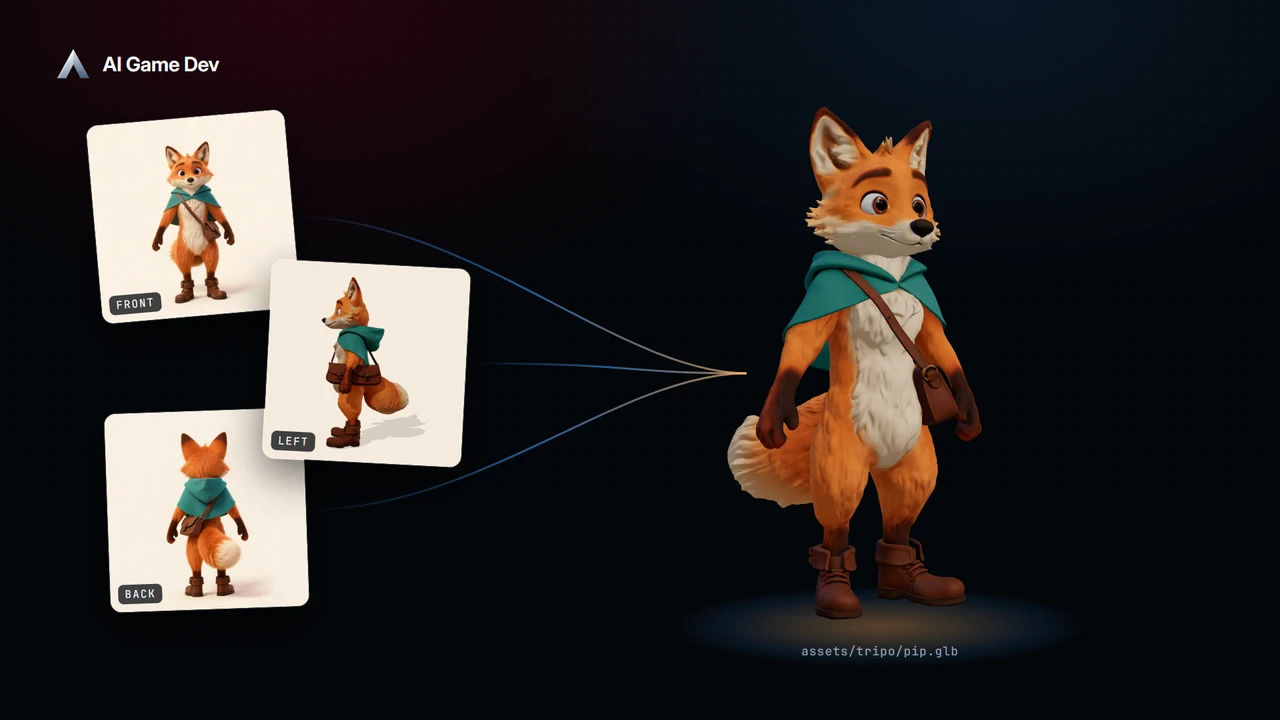
- Packages extend the app itself. A package can add commands and menus, panels, editors for particular file types, short tutorials and agent tools. Blender, Music with SuperCollider, the Knowledge Base, Tripo and the local image models are all packages.
- Claude plugins bundle skills, commands and agents for the Claude agent. You can install them from a marketplace, straight from GitHub, or from a folder on disk.
- MCP servers expose tools over the Model Context Protocol. Any MCP server, local or remote, can be added to a project.
All three end up in the same place: the tools the agent can use in a session.
Step 1: Add and Configure Packages
Open the Packages window. It fills the app below the title bar with resizable panels: the list of packages, the details of the one you select, and its settings. From here you find, add, remove and configure packages, and each package has a switch for automatic updates. The first-party packages, such as Blender, the Knowledge Base, local image and video generation, SuperCollider and Tripo, are listed with their status, and a Models tab lists the local image models you can download on request.
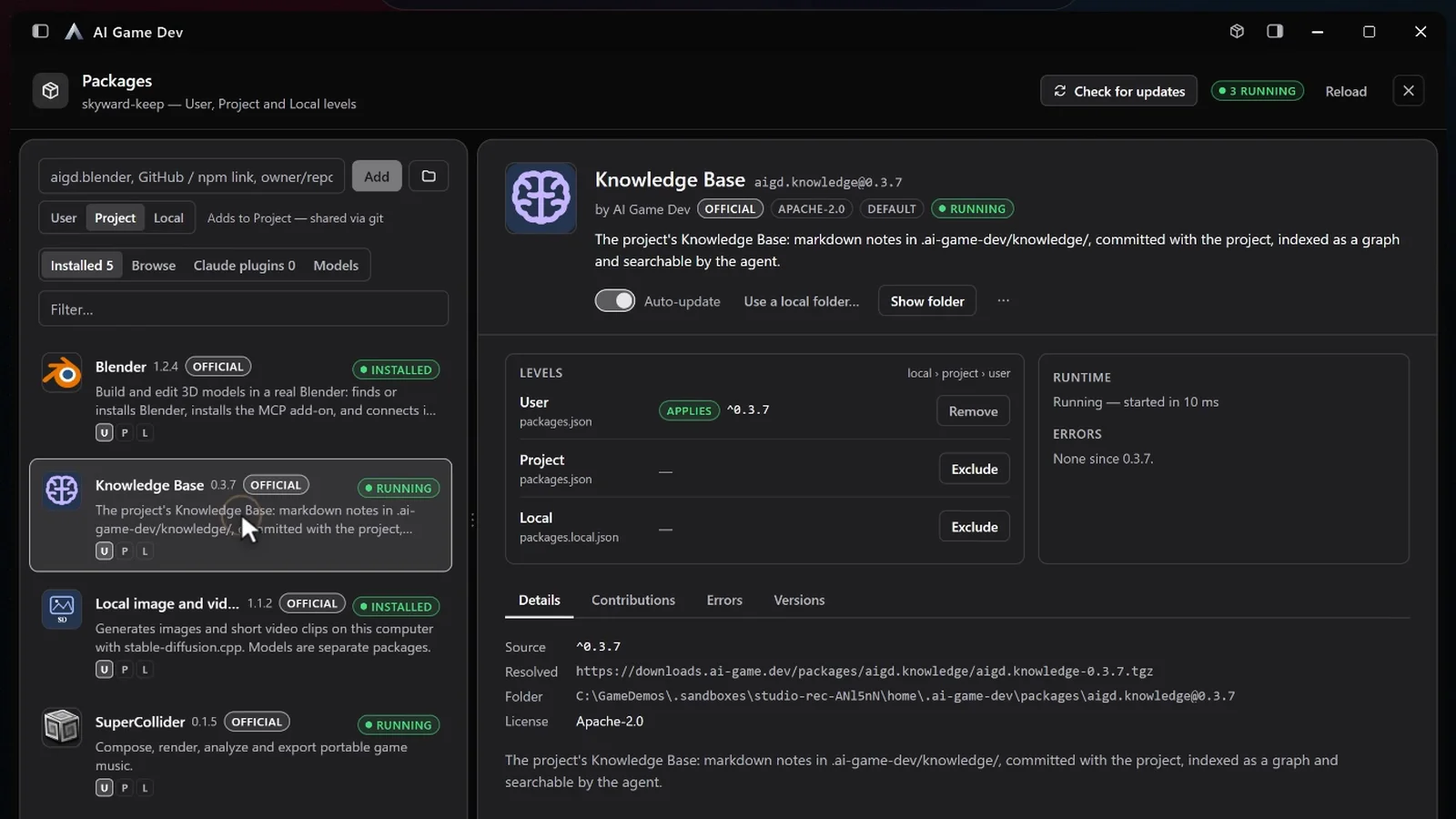
Package settings can apply at three levels:
- User: for you, in every project.
- Project: committed with the project, so the whole team gets the same setting.
- Local: for this project on this machine only, such as the path to a tool installed on your computer.
Some settings are path fields with a Browse button and a check for free space, and some offer choices that come from the package itself. Settings can also be read and written from the gamedev CLI, with every value checked against its declared type before it is saved.
Step 2: Choose the Tools for This Session
Installing a package does not mean every chat carries it. Tools are chosen per session in the Tools row above the composer: turn Blender on in the session where you model, keep it off in the session where you write gameplay code. Each session remembers its own choices between launches, and the Tools row only lists tools that actually do something today.
Why this matters: every tool takes up part of the agent's context. A session with only the tools its task needs is cheaper, faster and less likely to pick the wrong tool. A practical rule:
- A code session: the engine tools and the Knowledge Base.
- An asset session: the image tools, Tripo or Blender.
- An audio session: Music.
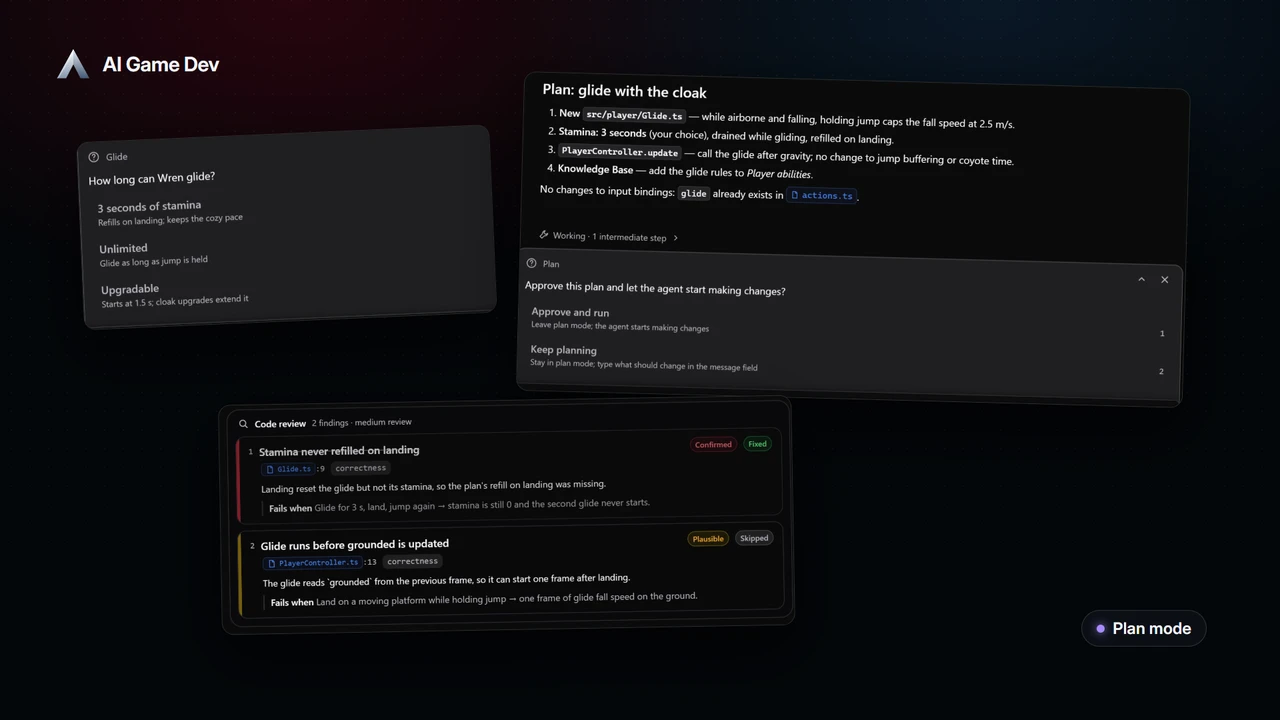
Changes apply on the next message. Enable a tool and it is included in the next message you send, even one that is queued while a response is still being written; disable it and it is gone on the following turn.
Step 3: Add Claude Plugins and MCP Servers
Plugins and MCP servers are added in Settings. For plugins, Settings explains marketplaces, searches their catalogs and marks what is already installed, and you can also install directly from GitHub or paste a folder path. For MCP servers, the connection test performs a real handshake and lists the tools the server offers, so you know it works before the agent tries to use it.
Since release 0.25.5, a new plugin or MCP server applies to the chat you already have open (https://ai-game.dev/releases/0.25.5). The composer's command list refreshes, and the new tools are available on the next message in the same session, without restarting the chat. Queued messages keep their order, and disabling an extension removes it on the next turn.
MCP servers you add belong to the project that was open when you added them, so a server for one game does not leak into another.
Example: A Project MCP Server in One Minute
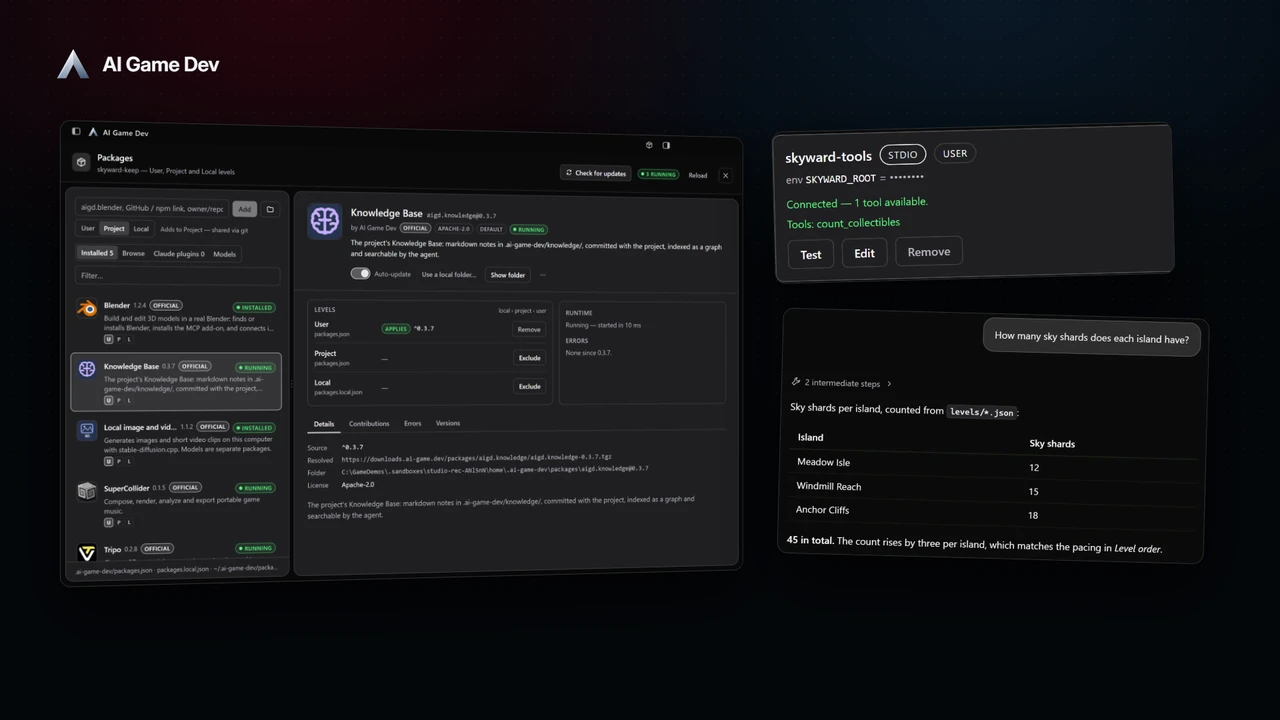
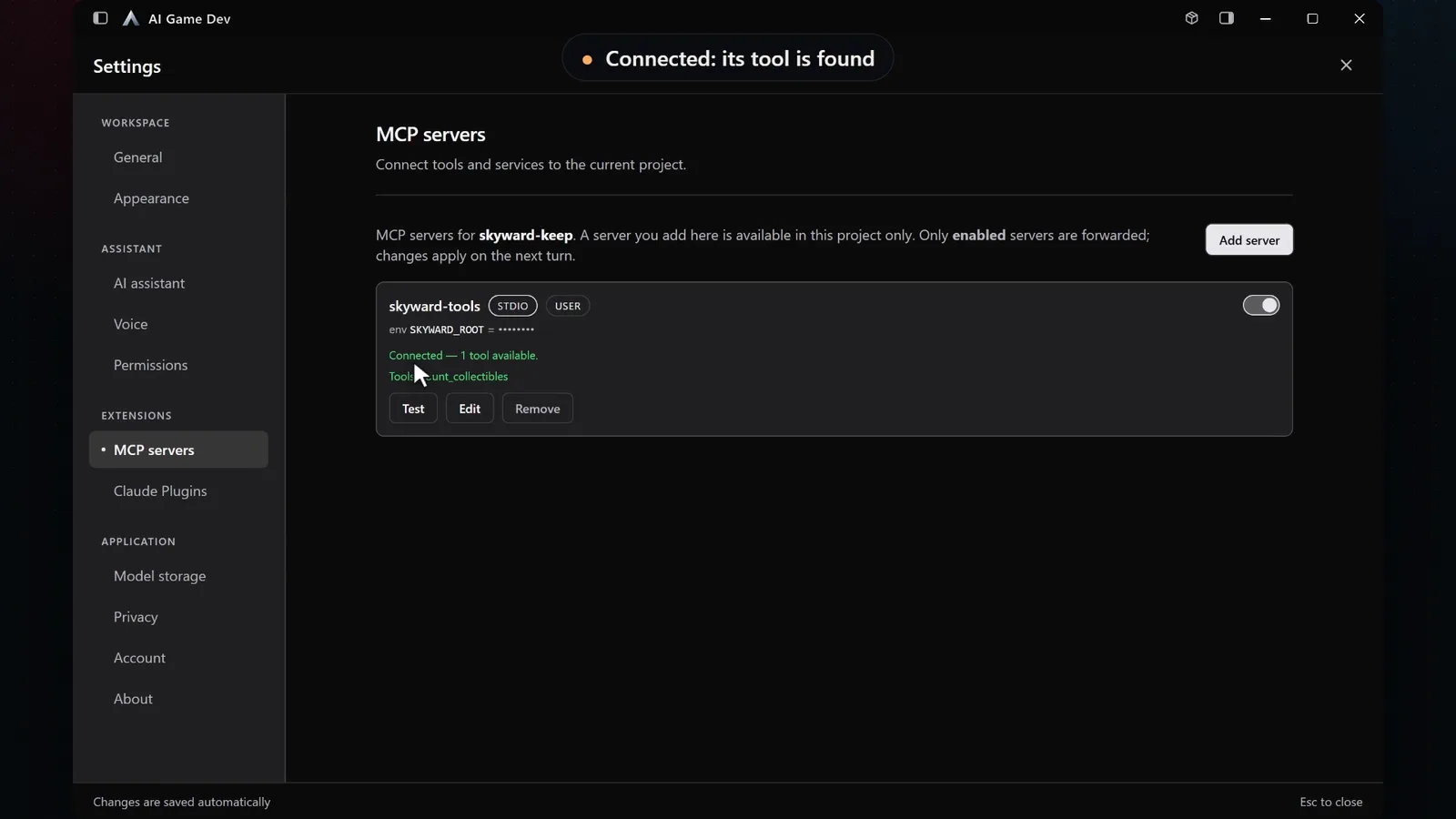
In the demo we add skyward-tools, a tiny MCP server written for our demo game that counts collectibles in the level files. In Settings, under MCP servers, we add it as a local process: a name, the stdio transport, the command node and the path to the script. A local server is a program on your machine, so the app asks first: Run a local process? Only Add and allow starts it.
The connection test then reports that the server is connected and that one tool is available.
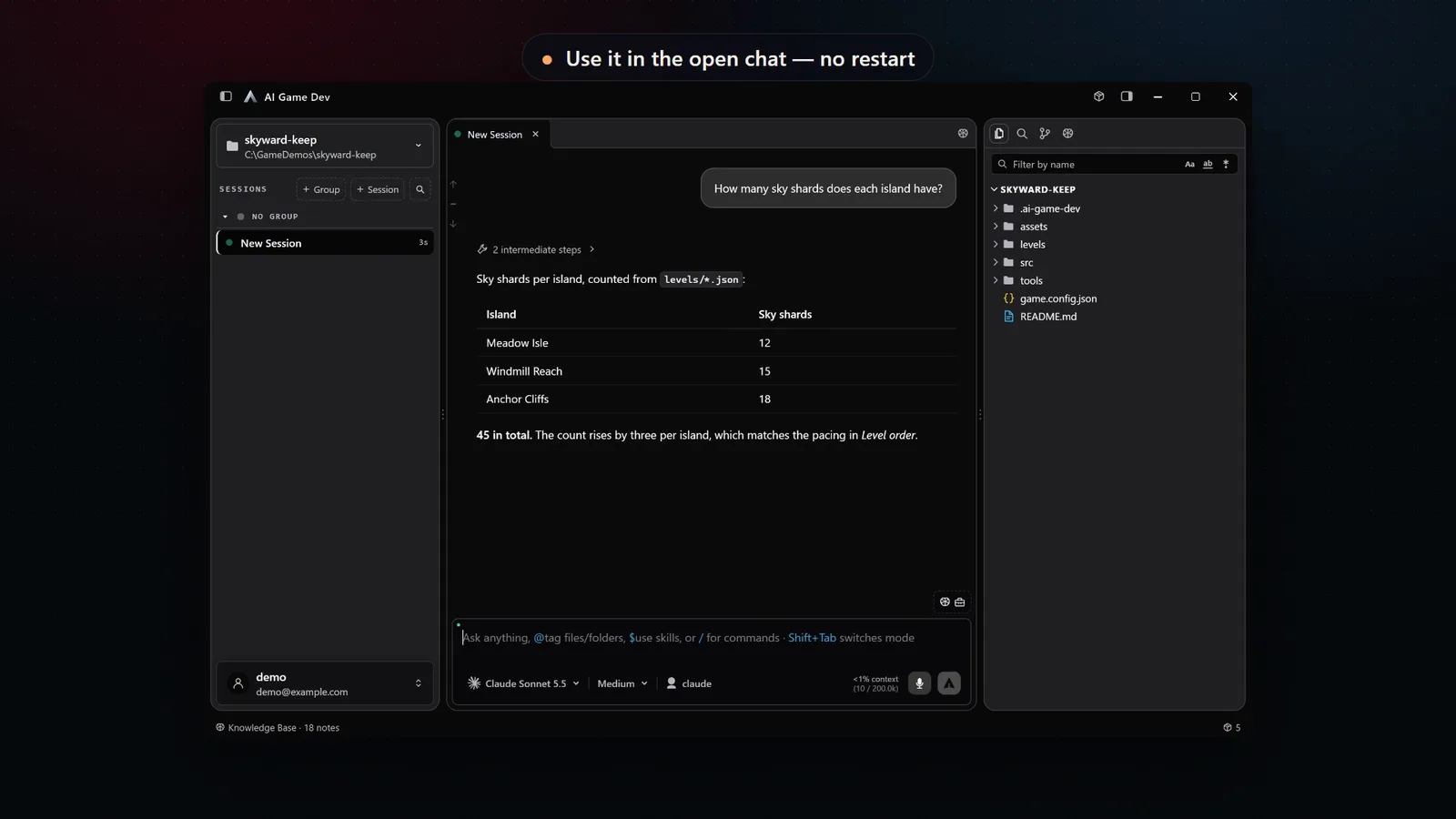
Back in the chat that was already open, we ask: "How many sky shards does each island have?" The agent uses the new skyward-tools server and answers with a table per island, counted from the level files. No restart, no new session.
Step 4: Write Your Own Package
If your team has a repeated task, a package is a good way to share it. A package is a folder with a manifest and some JavaScript. It can contribute:
- Commands, menus and slash commands.
- Panels, right-panel views and windows of its own, which follow the app's theme.
- Editors and previews for particular file types, for example a custom level format.
- Agent tools, whose results can include images as well as text.
- Settings, tutorials and an avatar for the Packages list.
Packages can also be pure data. The local image models in the app are packages with no code at all: they declare their files, download sizes, licences and the hardware they fit.
To develop a package, use a local folder from the Packages window. The app uses it in place and reloads it when the files change, and a build that failed is reported instead of being linked. When you are ready to share it, packages can be added from the registry, from GitHub or from npm. Package tool servers are named after the publisher and the package, so names from different authors never collide.
Putting It Together
A good toolset is small and deliberate. Install the packages, plugins and servers your project needs once, then choose for each session the few that match its task. When a task changes halfway through, turn a tool on in the open chat instead of starting over.
Packages arrived in release 0.20.0 (https://ai-game.dev/releases/0.20.0). The ecosystem page at ai-game.dev/docs/ecosystem shows how the app, the engine plugins and the MCP server fit together, and the tools catalog at ai-game.dev/docs/tools lists what the engine plugins already give the agent. Download the app at ai-game.dev/download to start building your own toolset.