AI in Blender — Build and Edit 3D Game Assets from Chat
Connect Blender to AI Game Developer with one command and let the agent build and edit 3D game assets in a real Blender, step by step, from chat.
AI Game Developer can drive a real Blender. One command finds or installs Blender, sets up the add-on the agent uses, and connects it to your project. From then on you describe a model in chat, and the agent builds it in Blender, saves it into the project and shows it in a preview pane. This is AI in Blender as a working editor, not a black box: every step is a real Blender operation you can see, inspect and change.
In this post we follow one session from our demo game, Skyward Keep: the agent models a low-poly treasure chest in Blender, checks its own work, takes a follow-up edit in plain words, and exports the result into the project. Along the way we cover how to connect Blender and how to write requests that get good models. The video is a real recording of the app: the agent's replies are scripted for the demo, and every tool call in it ran for real.
Why a Real Editor Instead of One-Shot Generation
Generators such as Tripo are great when you want a complete model from references in one go. Game assets, though, often need precise control: an exact number of segments on a pillar, a door that fits a 2-metre opening, a modular wall piece that snaps to a grid, a prop that stays under a polygon budget. Those are modelling decisions, and Blender is where they are made.
When the agent works in Blender, you get:
- Exact dimensions, counts and positions, stated in plain language and applied as real operations.
- An editable result: modifiers, objects and materials you can keep changing, by hand or by asking again.
- A loop of small, reviewable edits instead of a new random result every time.
Step 1: Connect Blender with /blender
Type /blender in the desktop app or in the gamedev CLI. The command looks for an installed Blender 4.2 or newer. If it finds none, it downloads a portable Blender for you. It then installs the add-on the agent drives and opens Blender, set up for the current project only, so other projects never see it.
The command also has subcommands for later: status shows what is set up and whether Blender is connected, open opens Blender with an optional .blend file, find lists every Blender on the computer, and remove disconnects Blender from the agent. If you prefer a specific installation, setup accepts the path to that Blender, and a safe option restricts the agent's Python in Blender to a safe subset. Everything the app downloads for Blender is pinned to an exact version and checked before use.
Turn Blender On for the Session
Blender is a package, and its tool is a switch in the session's Tools row. Turn it on in the session where you want to model, and every other session keeps its own choices. If you have not used it before, a short tip in the app offers to try Blender in this session, and then to build a sample model so you can see the whole loop once.
If Blender is closed when the agent needs it, it is started automatically, and the app window stays in front so you can keep typing while Blender works.
Step 2: Ask for a First Asset
Start with a prop that has clear parts. The demo request is one sentence:
"Using Blender, model a low-poly treasure chest for Meadow Isle: wooden body, dark metal bands, a small gold lock."
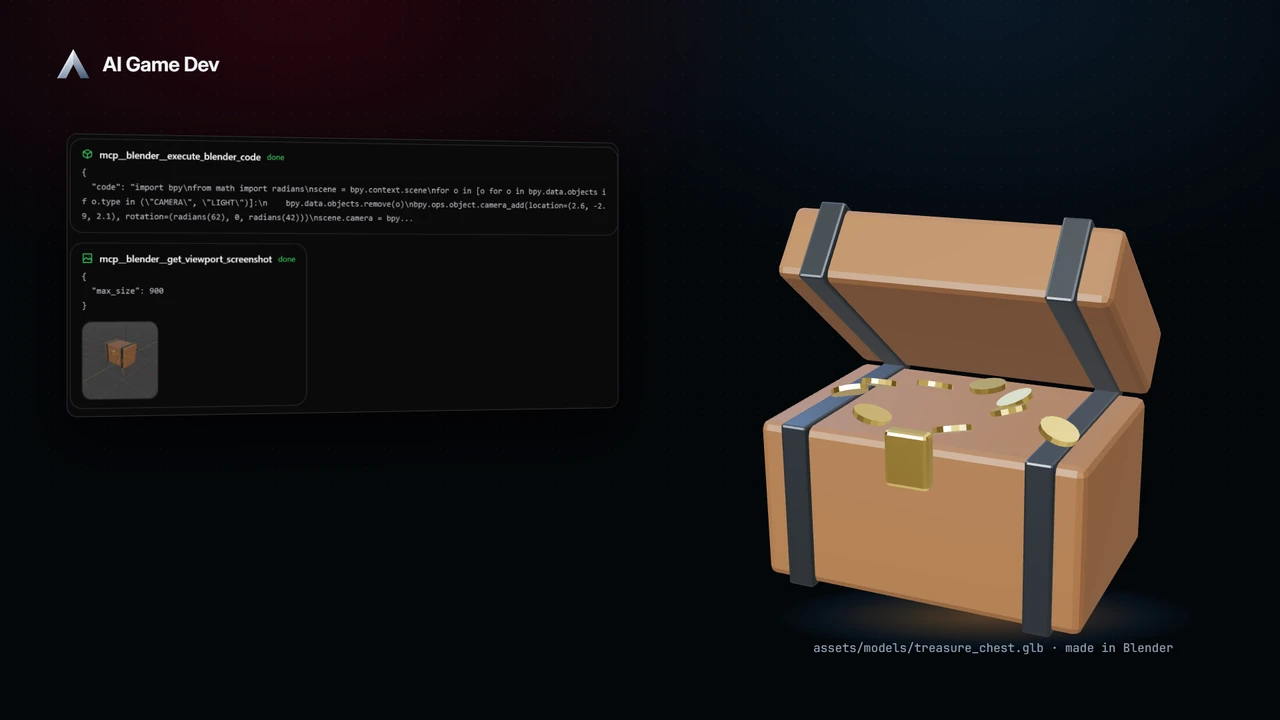
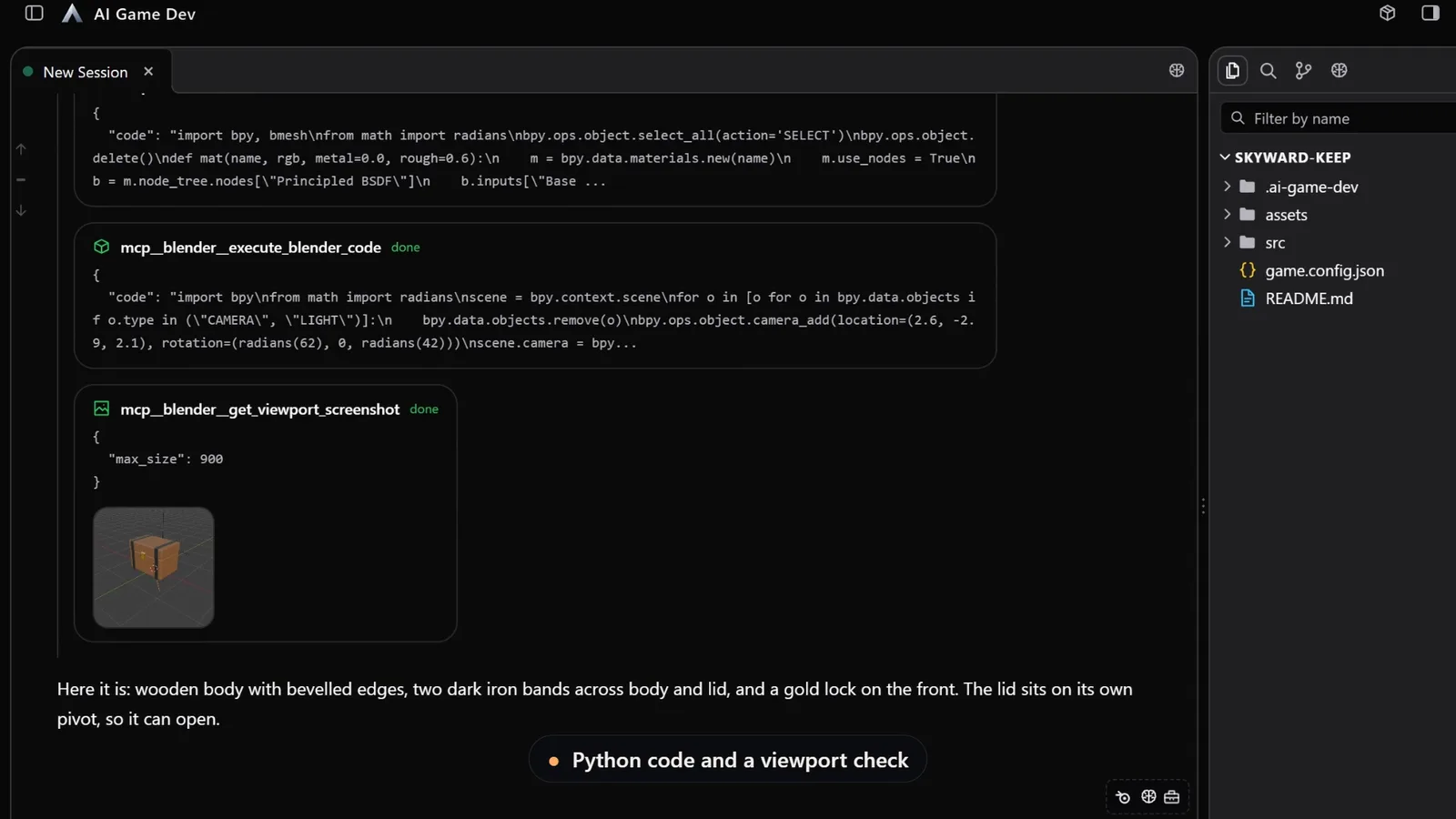
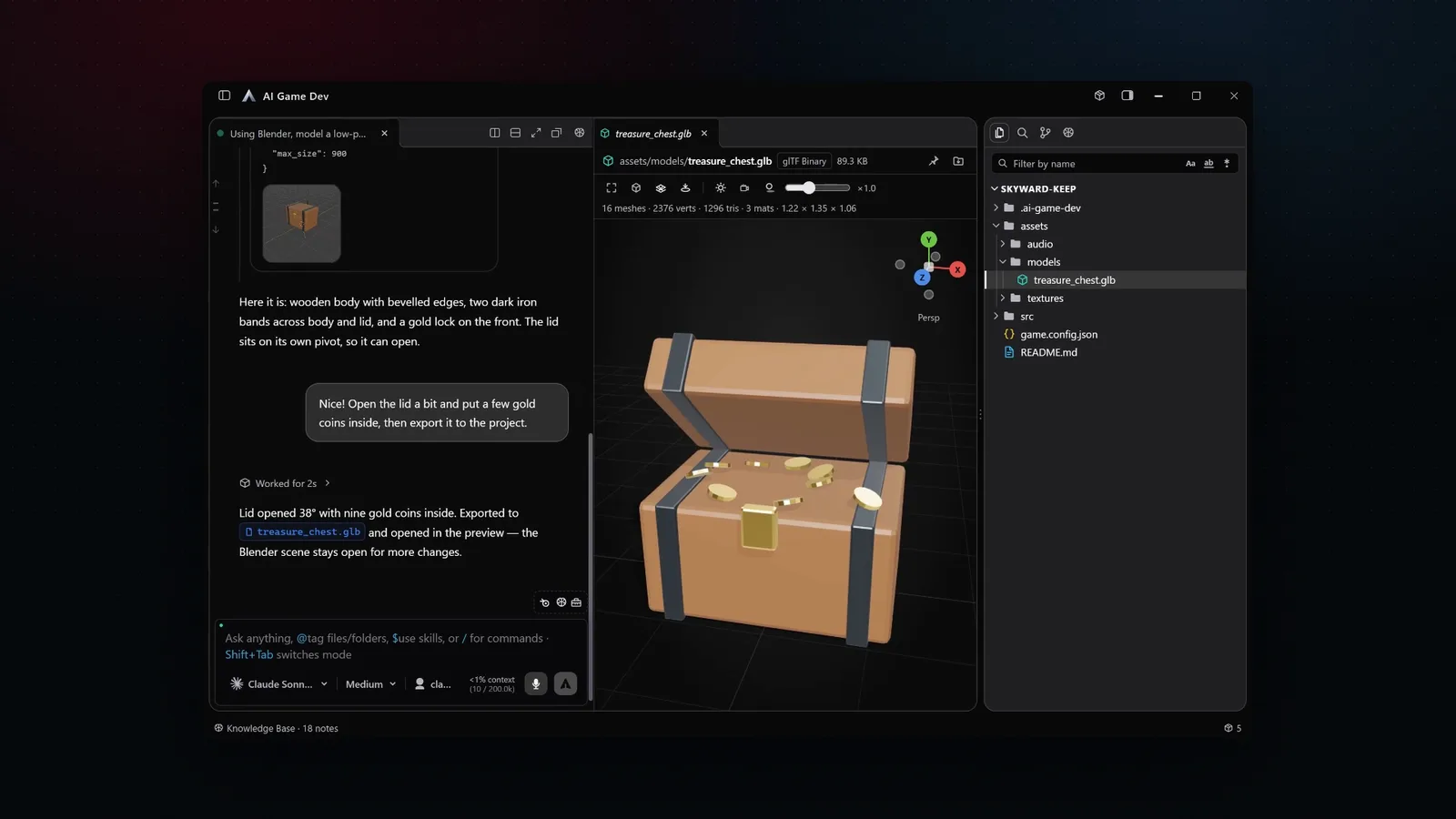
The agent builds the chest with Blender's Python API, one call at a time, and then takes a viewport screenshot to check its own work before it reports back. Its summary describes what is in the scene: a wooden body with bevelled edges, two dark iron bands across the body and the lid, and a gold lock on the front. It also set the lid on its own pivot, so it can open later. That is the kind of decision that makes the next edit easy.
A good modelling prompt includes:
- The real-world size, so the asset matches the scale of your game.
- The style: low-poly, stylised or realistic.
- The structure: what the separate parts are.
- A budget, such as a triangle count.
- Where the file should be saved in the project.
Step 3: Refine with Small, Specific Edits
This is the part that one-shot generation cannot do well. Because the model lives in Blender as real objects, each request changes exactly what you asked for and keeps the rest. In the demo the follow-up is:
"Nice! Open the lid a bit and put a few gold coins inside, then export it to the project."
The agent rotates the lid on its pivot to 38 degrees, places nine gold coins inside, exports the scene as a GLB file to the project's models folder and opens it in a 3D preview pane next to the chat. The Blender scene stays open for more changes.
Other edits that work the same way:
- "Make the metal bands thinner and darker."
- "Create three size variants and save each as its own file."
- "Move the origin to the bottom centre so it sits on the floor."
Ask for one change at a time and check the preview after each. If an edit goes the wrong way, say so and the agent adjusts it. You can also open the file in Blender and make a change by hand, then tell the agent what you did, and it continues from there.
Modular Pieces for Level Design
Blender is especially useful for modular level kits, where pieces have to fit together exactly. Ask for a set with shared rules, such as "a wall, a doorway, a corner and a floor tile, all on a 2-metre grid, with the same stone trim", and the agent keeps the measurements consistent across the set.
Step 4: Bring the Asset into the Game
The saved file is in your project, so the next request can take it into the engine. In a Unity, Godot or Unreal project connected through AI Game Developer, ask the agent to import the model, set up its material and place it in the scene. You can also chat in a plain folder, for example a Blender-only asset project, and move the finished models into the game later.
Blender and Tripo Together
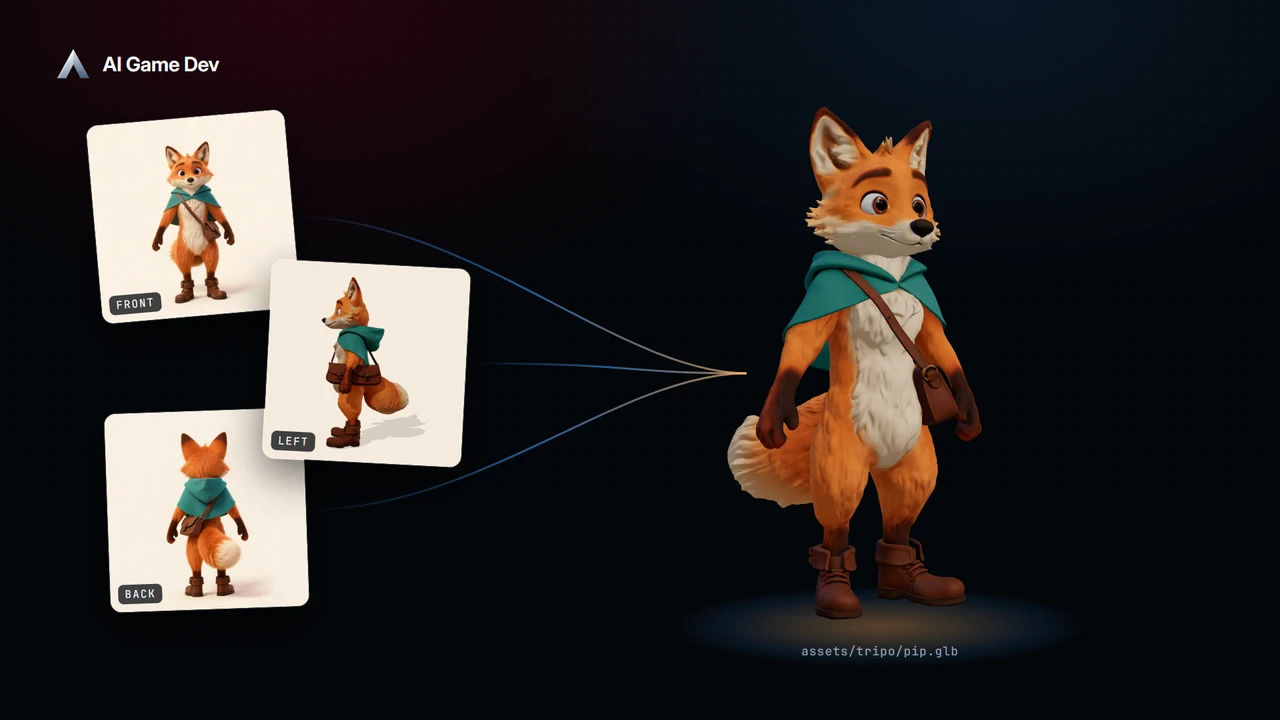
The two approaches combine well. Use Tripo to generate a complete base model from reference images, then open it in Blender and let the agent clean it up: fix the scale, split parts, set the origin, or add the details the generator missed. Or go the other way: block out a shape in Blender, render views of it, and use those views as references.
Blender support arrived in release 0.18.0 and became a package in 0.20.0; the details are in the release notes at https://ai-game.dev/releases/0.18.0 and https://ai-game.dev/releases/0.20.0. To try it, download the app at ai-game.dev/download, open your project, and type /blender.