Local AI Video Generation on Your GPU — Short Clips for Games with LTX-2.5 and Wan 2.2
Generate short video clips locally with LTX-2.5 and Wan 2.2 in AI Game Developer, from text or a start image, and learn what your GPU can realistically do.
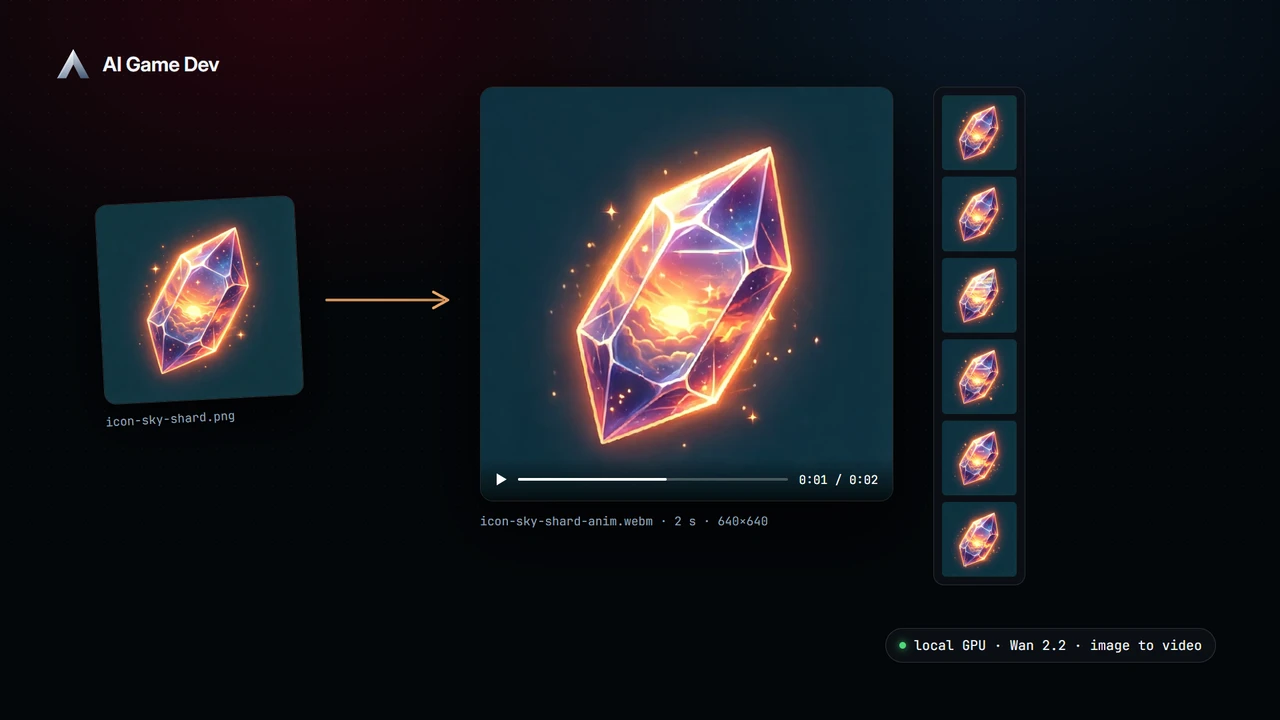
AI Game Developer can generate short video clips on your own GPU. The Video tool runs two open models locally, LTX-2.5 and Wan 2.2, and turns a text prompt or a start image into a clip of a few seconds, saved into your project. This post covers what local AI video generation is useful for in game development, how to get a good clip, and the honest limits of what a desktop GPU can do today. The demo animates the sky shard icon from our demo game, Skyward Keep, into a pulsing HUD icon.
What Short Clips Are Good For in a Game Project
A few seconds of video is not a cutscene, but it covers more of a game project than you might expect:
- Animated backgrounds for the main menu or a loading screen.
- Mood and pitch material: a quick moving concept of a level or a character, for your team or a store page draft.
- Reference motion for animators: how a cloak should move in wind, how smoke should rise.
- Placeholder cinematics while the real ones are in production.
- Social posts and devlog teasers made from your own concept art.
The image-to-video mode is the most useful for games, because it starts from art you already have. Generate a concept image locally, or use a screenshot of your scene, and ask for motion on top of it.
Step 1: Turn On the Video Tool
The Video tool is off by default. Turn it on for the session in the Tools row, then pick a model. As with the image models, the app checks your hardware, shows only what your machine can run, and downloads a model only after you approve it. Video models are large, so expect a long first download and make sure the model storage folder is on a drive with enough space; the folder can be moved.
Step 2: Choose LTX-2.5 or Wan 2.2
The two models make different trade-offs:
- LTX-2.5 is the faster and higher-quality model, and it produces clips with synchronised sound: speech, effects and ambience. It needs an NVIDIA GPU with 16 GB of video memory and about 48 GB of system memory.
- Wan 2.2 TI2V 5B is lighter and fully open under the Apache 2.0 licence, and it produces clips without sound. It runs on an NVIDIA GPU with 12 GB of video memory and 16 GB of system memory, but it is several times slower.
Both support text-to-video and image-to-video. Check the licence of the model you use before you ship anything made with it: Wan 2.2 is Apache 2.0, and LTX-2.5 uses the LTX-2.x Community License, which allows commercial use below a revenue threshold set in the licence.
Step 3: Write a Prompt for Motion
A video prompt needs what an image prompt needs, plus motion and camera. Keep each clip to one idea:
- "Slow camera push-in on a misty forest clearing at dawn, light rays through the trees, leaves drifting, calm ambience."
- From a start image of your castle: "The flags on the towers flutter in strong wind, clouds move quickly across the sky, the camera stays still."
- "A blacksmith's forge, sparks rising from the anvil, warm flickering light, the sound of hammer strikes."
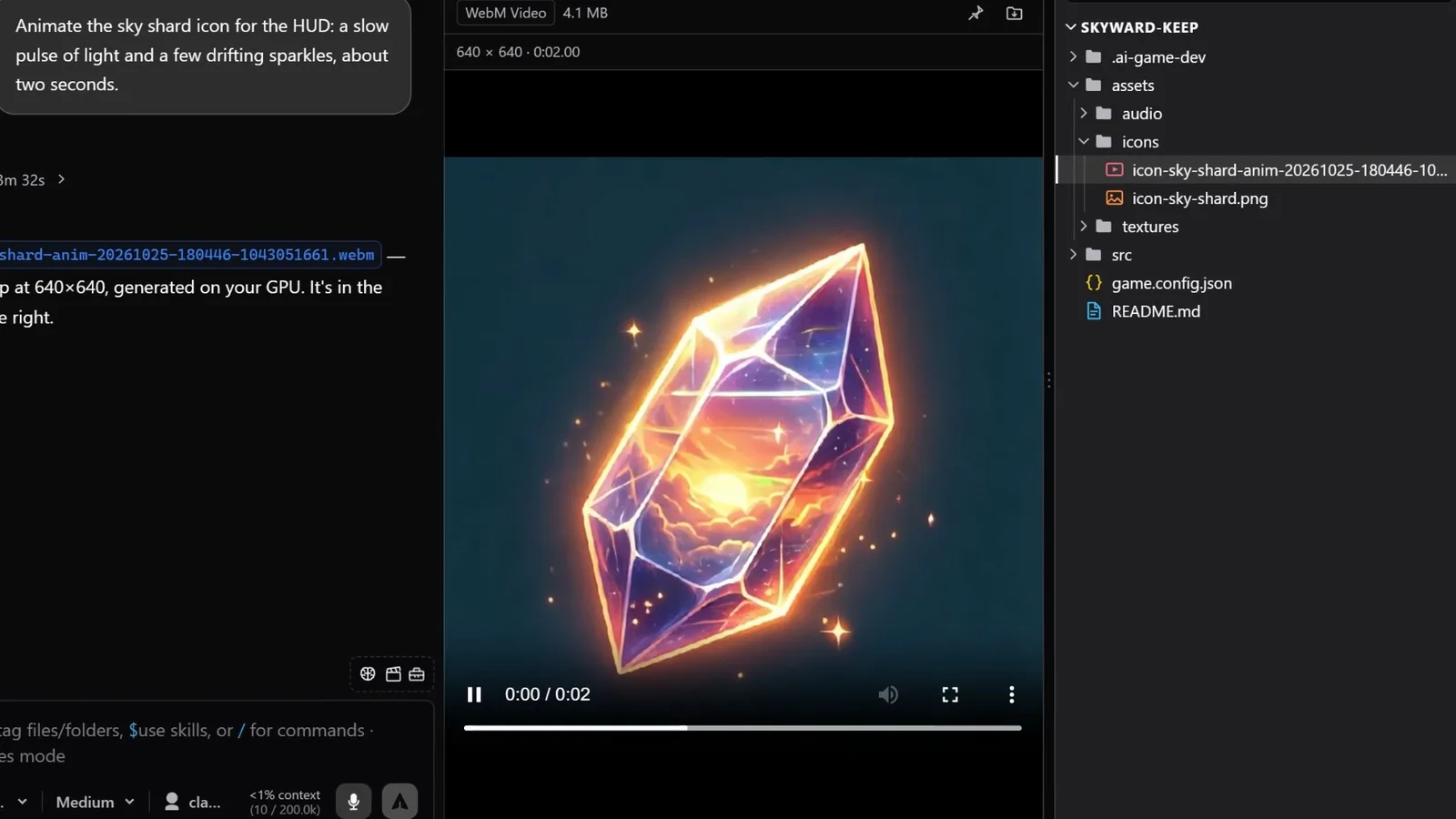
The demo request is: "Animate the sky shard icon for the HUD: a slow pulse of light and a few drifting sparkles, about two seconds." The agent starts from the existing icon so the shard keeps its look, and asks for a gentle, seamless loop: the crystal slowly pulses with warm light while small golden sparkles drift upward around it.
Say what moves and what stays still. "The camera stays still" is one of the most useful phrases in video prompts, because it keeps the scene from drifting.
Step 4: Generate and Review
By default the clips are 1280 by 704 at 24 frames per second, about two seconds long, and they can go up to about five seconds. The job runs in the same local queue as image generation, so a batch of clips does not reload the model between them. When the clip is ready, it opens in a preview pane next to the chat.
Generation takes minutes, not seconds. In the demo, a two-second 640 by 640 clip from the icon took Wan 2.2 about three and a half minutes on an NVIDIA RTX 4090. LTX-2.5 is several times faster on the same kind of job, but needs much more memory. Your numbers will depend on your GPU, memory and clip size.
Iterate in Small Steps
Since each clip takes a while, iterate on a short, low-cost version first: keep the default length while you refine the prompt, and only make the final clip longer. If the motion is right but the look is not, improve the start image first with the image tools, then animate it again.
The Honest Limits
Local video is new and demanding. Before you plan around it, know what to expect:
- Clips are short: a few seconds each. Longer sequences mean several clips cut together.
- Both models need an NVIDIA GPU with CUDA and a lot of system memory. Machines without one cannot run the Video tool today.
- Consistency across clips is limited. A character can change slightly between two clips of the same scene, so plan shots that do not depend on exact continuity.
- Good results take several attempts, and each attempt takes minutes.
Within those limits, a few seconds of moving concept art made from your own images is a genuinely new tool for a small team.
Local Video and Local Images Together
Video works best as the last step after local image generation: make the still image you want, edit it until it is right, then bring it to life. Both run on the same local runtime and queue, both save into your project, and both appear in previews next to the chat.
The Video tool arrived in release 0.25.0 (https://ai-game.dev/releases/0.25.0). Download the app at ai-game.dev/download, check that your GPU fits, and try animating one piece of concept art from your game.