Compose Game Music with AI — SuperCollider Inside AI Game Developer
Compose game music and sound effects with AI in SuperCollider, from a menu theme to loopable stems, then export WAV files straight into Unity, Godot or Unreal.
Music and sound are often the last part of a game prototype, and the first thing players notice. The Music package in AI Game Developer lets you compose game music with AI: the agent writes SuperCollider scores with you, renders them to WAV, lets you listen in the app, and exports the finished audio into your Unity, Godot or Unreal project.
This is not a black-box song generator. The music is code you can read, version and change, so you can ask for "the same theme, slower, with less reverb" and get exactly that. In this post we compose the menu theme for our demo game, Skyward Keep, in one session, then look at loopable stems, sound effects from your own samples, and the export into the game. The video is a real recording of the app: the agent's replies are scripted for the demo, and every tool call in it ran for real. The clip on this page plays without sound; the theme itself is a calm, music-box piece you can render in your own project with the same request.
Why SuperCollider for Game Audio
SuperCollider is a mature open-source platform for sound synthesis and algorithmic composition. Every sound comes from a score, a text file that describes instruments and when they play. That fits an AI agent well:
- The agent writes and edits text, which is exactly what a score is.
- A change is precise and repeatable: tempo, key, instruments, effects and length are all explicit.
- The source files live in your project and can be committed to Git like code, while rendered audio is a disposable output.
Each render records its source hashes, seed and settings before it runs, so you can trace any WAV back to the score that made it.
Step 1: Turn Music On for the Session
Music arrives with the app as a package. It is installed by default, and you activate it for the sessions where you want it from the session's Tools row. When you open a session connected to a Unity, Godot or Unreal editor, a short tip offers to enable Music, then to compose an eight-second sample theme or to describe your own idea. Nothing is installed, rendered or sent until you choose.
The first time you actually use it, the package sets up the SuperCollider runtime it needs, a pinned and verified version. Type /supercollider at any time for its status and a short guide. Today the runtime is available on Windows and macOS.
Step 2: Compose a Menu Theme
Describe the music the way you would brief a composer: mood, length, how it will be used, and any musical material it should build on. The demo request is:
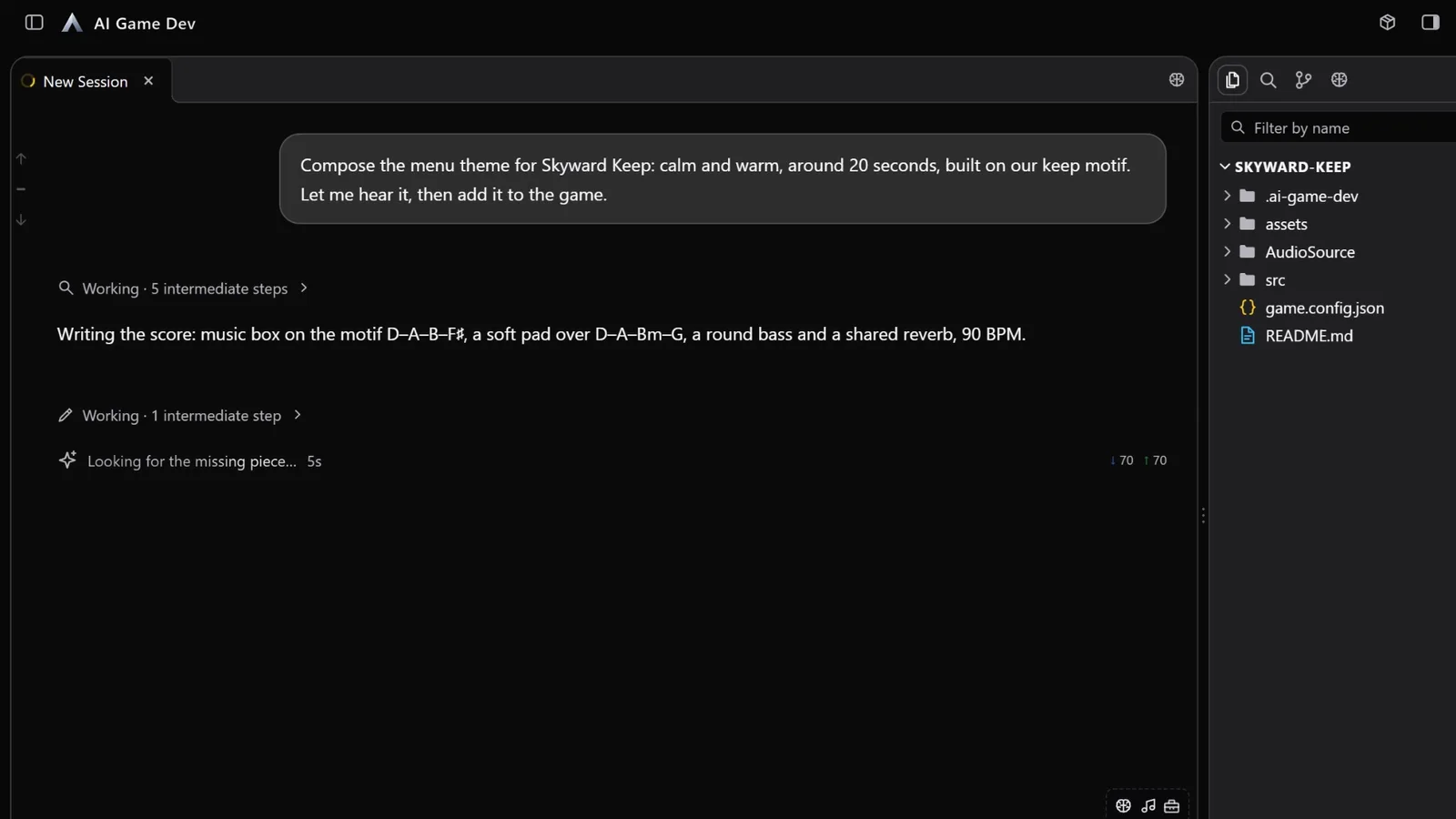
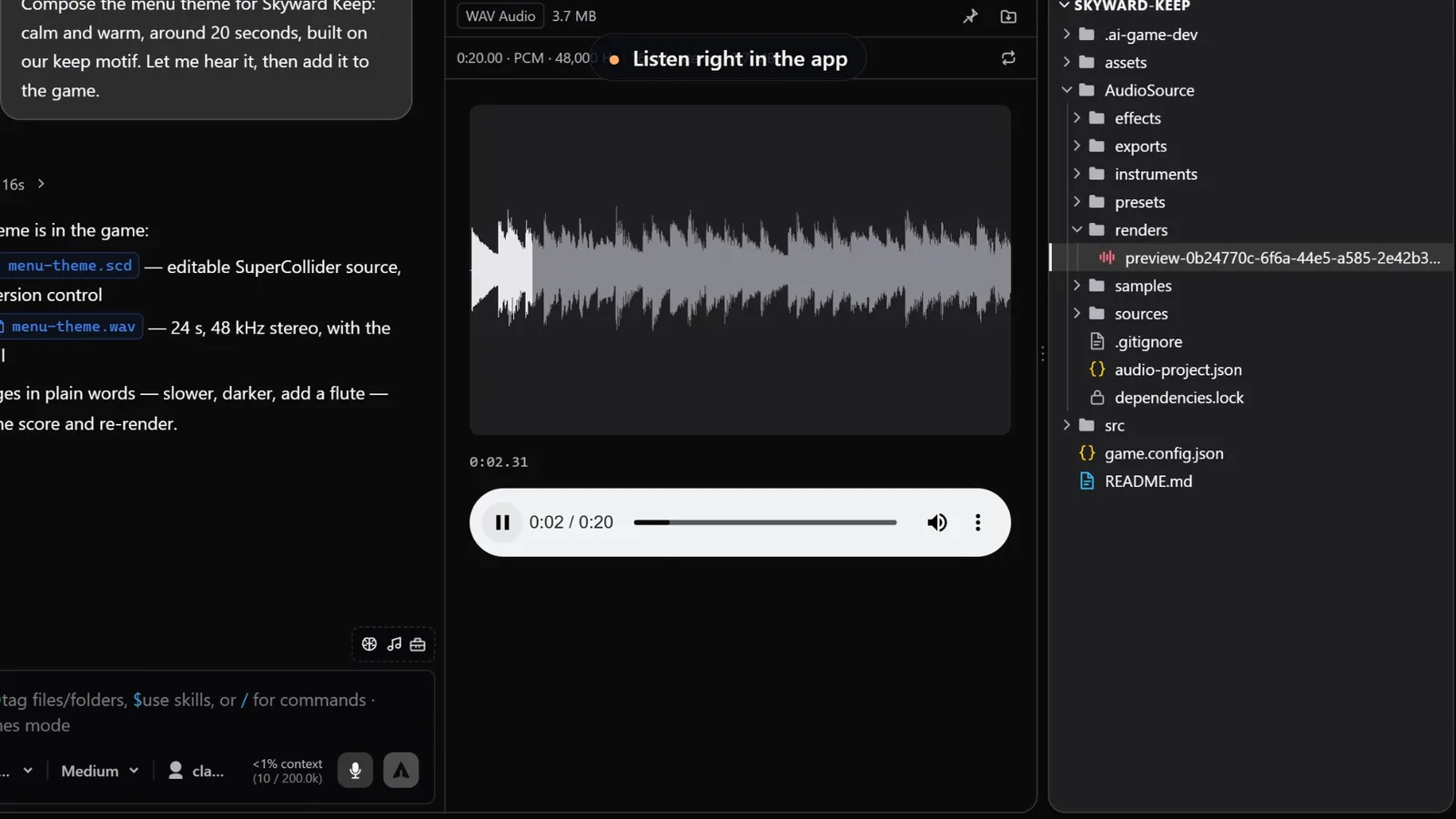
"Compose the menu theme for Skyward Keep: calm and warm, around 20 seconds, built on our keep motif. Let me hear it, then add it to the game."
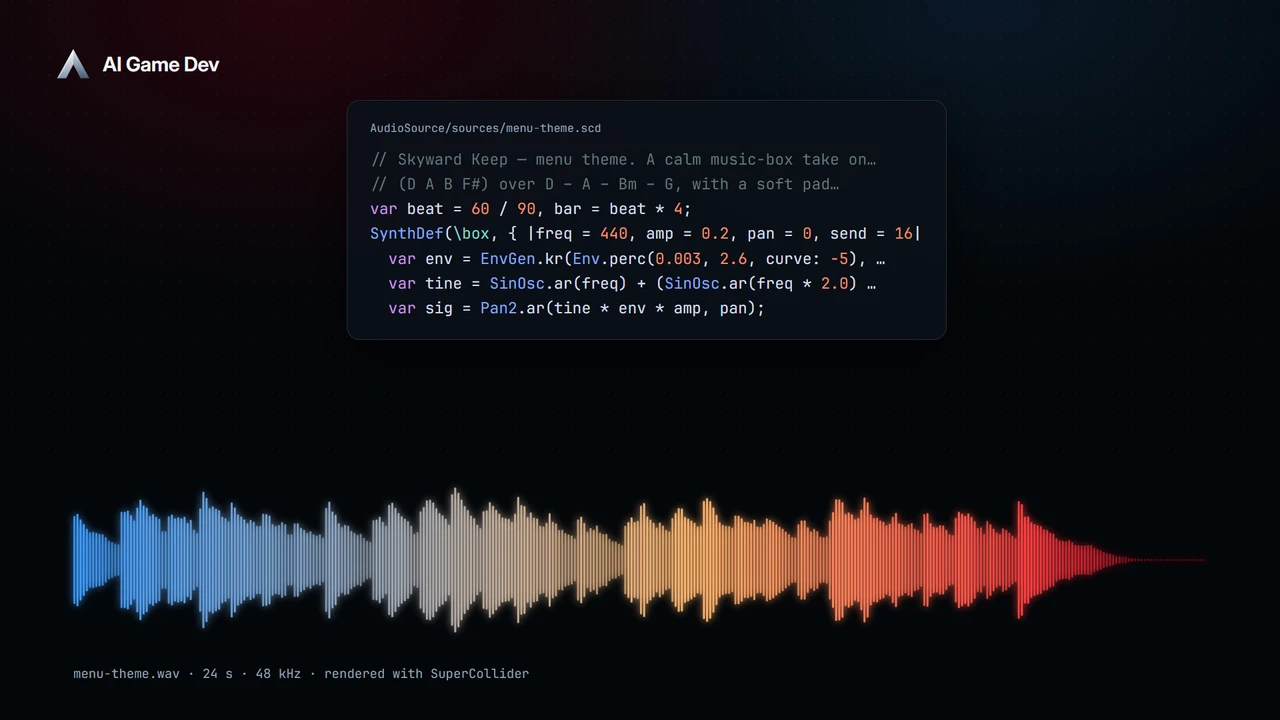
The agent first checks the project's audio notes in the Knowledge Base, where the keep motif is written down, and decides on a calm music-box version of it. It creates a portable AudioSource project in the game folder, then writes the score: a music box playing the four-note motif D, A, B, F sharp, a soft pad over the chords D, A, B minor and G, a round bass and a shared reverb, at 90 BPM.
The score is rendered locally, and the agent opens a preview so you can listen right in the app, with the waveform and a player. The result is two files: menu-theme.scd, the editable SuperCollider source that is kept in version control, and menu-theme.wav, a 24-second 48 kHz stereo render with the reverb tail.
Renders are mono or stereo 16-bit WAV at 44.1, 48 or 96 kHz, up to ten minutes long. The agent can also analyse a render and report its duration, peak and RMS levels, and any clipping, which helps when a mix is too quiet or too hot.
Iterate Like You Would with a Composer
Listen, then ask for focused changes:
- "Make the melody one octave lower and give the pads a slower attack."
- "Add a light percussion layer in the second half."
- "Shorten it to 16 bars and keep the ending."
Because the score is code, each change keeps the rest of the piece as it was. If you like an earlier version better, Git has it.
Step 3: Loopable Stems for Adaptive Music
Games often need music in layers that can fade in and out with the action. Ask for stems that share the same length and timing:
"Split the level theme into three stems, drums, bass and melody, with the same duration and tempo, so they loop together."
The stems are rendered with the same duration, sample rate and seed, and trimmed to the exact number of frames, so they line up sample for sample and loop cleanly. In the engine you can then raise the drums when combat starts and drop them when it ends.
Step 4: Sound Effects from Your Own Samples
SuperCollider is just as good at sound effects. You can import your own WAV recordings as samples: mono or stereo PCM at 16, 24 or 32 bits, between 8 and 192 kHz. The import records each sample's hash, so the project knows exactly which audio a score depends on.
"Import footstep.wav as a sample and make four variations for gravel: slightly different pitch and length each, with a short tail."
Variations like these keep repeated sounds from feeling mechanical, and they cost nothing to make once the score exists.
Step 5: Export into the Game
When a render is ready, the agent exports it into the game project under a name you choose:
- Unity: into Assets/Audio, keeping the .meta file and GUID when a file is replaced, so references in your scenes do not break.
- Godot: into res://Audio/, with the authoring folder excluded from the Godot import.
- Unreal: imported as a SoundWave under /Game/Audio through the editor connection.
- Plain folders: into the AudioSource exports folder.
Replacing an export checks that the file you are replacing is the one you expect, so a newer file is never overwritten by accident.
What It Is Good At Today
The Music package works best for prototype and indie game audio: menu and level themes, ambient beds, stingers for wins and losses, UI sounds and variations of effects. Scores render offline rather than as live synthesis, and the result depends on how well the piece is described, so start with short pieces and build up.
Music arrived in release 0.20.0, and since 0.23.0 it stays installed but joins a new session only when you activate it (https://ai-game.dev/releases/0.23.0). To try it, download the app at ai-game.dev/download, open your game project and ask for a sample theme. For the rest of the workflow, the walkthrough at ai-game.dev/blog/build-game-with-ai-claude-code shows how the same agent builds the scene that this music plays in.